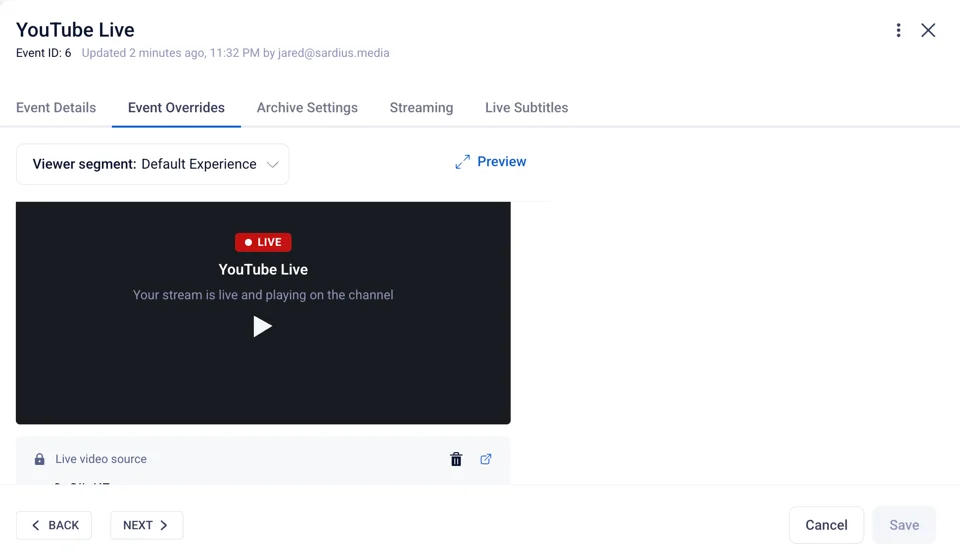
Add a YouTube live stream to your channel
Updated
Are you streaming to YouTube and want to share that live stream with your audience through your Sardius channel? This article will show you how to do it.
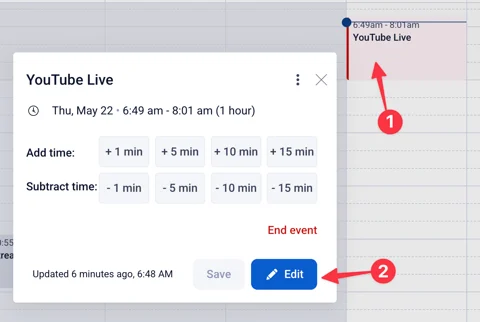
To add your YouTube live stream to your Channel Player, start by accessing your channel's calendar. From there, locate the event you want to add the YouTube live stream to and click "Edit."
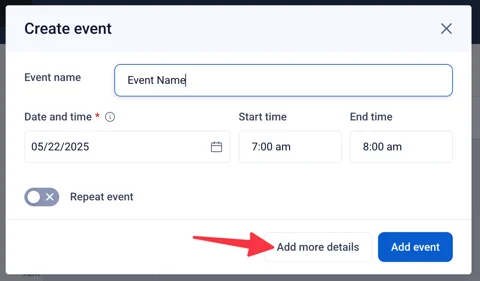
If you need to add a new event, click the "Add Event" button in the upper right corner. In the modal that appears, enter in a name for the event, adjust the time, and click "Add more details."
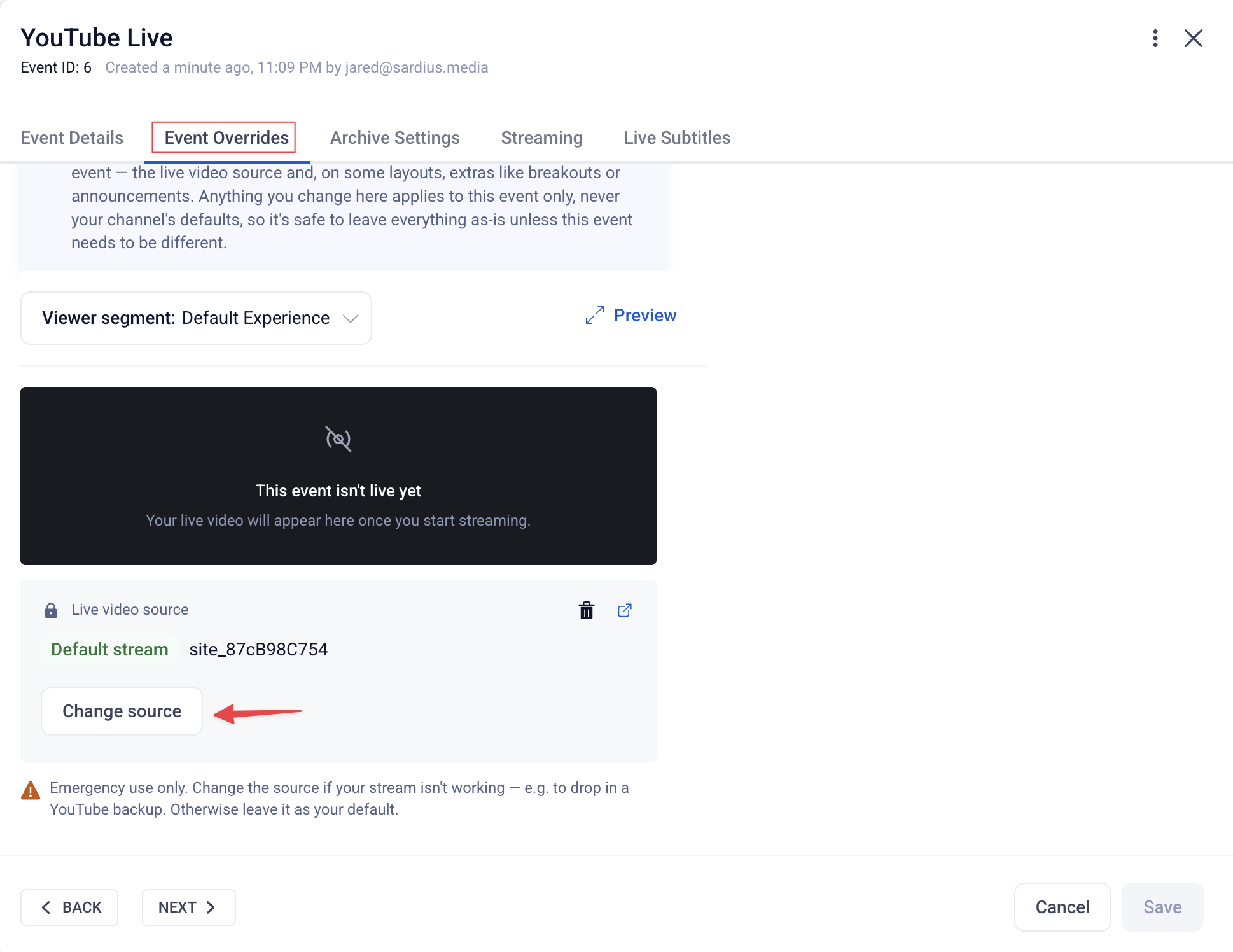
Click on the Event Overrides. At the bottom of the preview pane, click the "Change Source" modal button.
Next select "Advanced", followed by "YouTube" from the list.
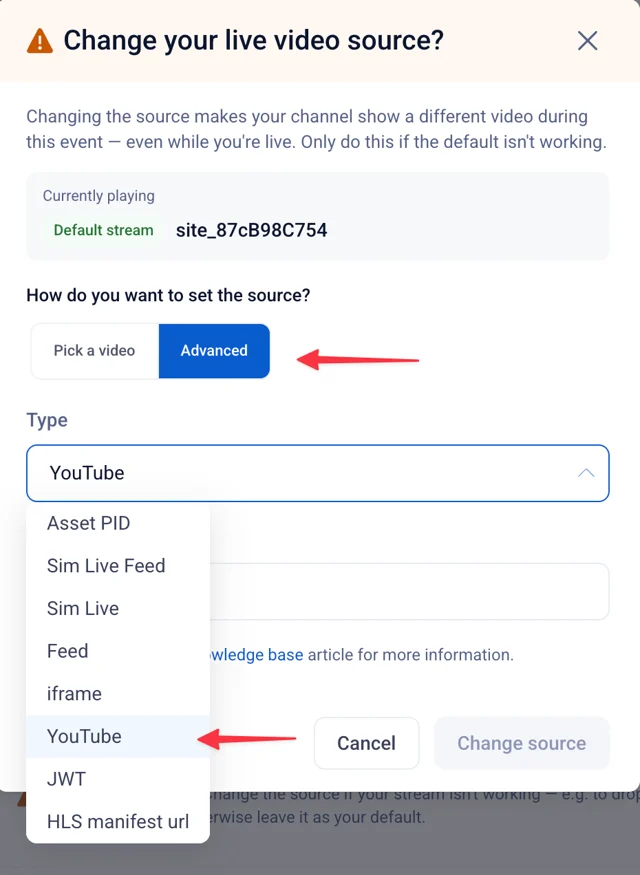
Now we need to get the Video ID for your YouTube live stream. In a separate tab or window, locate your YouTube live stream. In the URL bar of your browser, you will see something like this:
https://www.youtube.com/watch?v=ywr8uQiIpKE
The Video ID will be the characters that follow after v= in the URL. In this case, it's ywr8uQilpKE. Copy this ID and return to the Sardius Event. Paste this into the Video ID field. Then click Change Source.
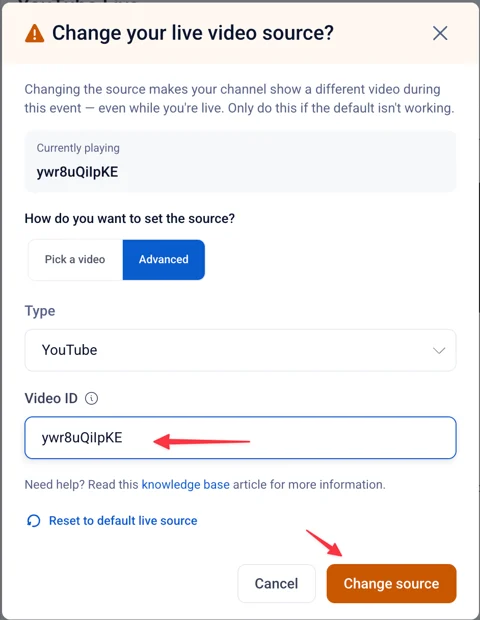
Notice that the Channel Preview now shows the YouTube video loaded in the window. Click "Save" in the bottom right corner. Next access your channel. If your event is live, notice that the player immediately changes to the YouTube Live Stream.