
Live Event Manager
Updated
The Live Event Manager, located above the Event Calendar in each channel, enables you to easily see and access your current stream, paired devices, outputs, and event timer controls.

- Player window: Allows you to see whether or not your encoder is properly connected to Sardius Stream and is streaming a live feed.
- Event Title: The title of your current live event.
- Device Status: Indicates the condition of your paired encoder(s).
- If a Red light is shown: There is an issue with the encoder.
- If a Green light is shown: Your encoder is properly connected and streaming.
- Edit event: Here you have the ability to edit your live event just as you would prior to starting the event.
- Streaming Outputs: Each output connected to the device that is streaming your live event will be shown here. When you are live, these icons are clickable. Managed Outputs can be started and stopped here; Not Managed Outputs are shown for monitoring only (see below).
- Event Timer Controls: Displays how much time is remaining in the current event. Here, you can also add time to the event or end the event.
- Stream Health Indicator: A set of status icons showing real time health and connection of specific stream destinations.
- If a Red light is shown: There is an issue with the destination.
- If a Green light is shown: Your destination is properly connected and streaming.
Player Window
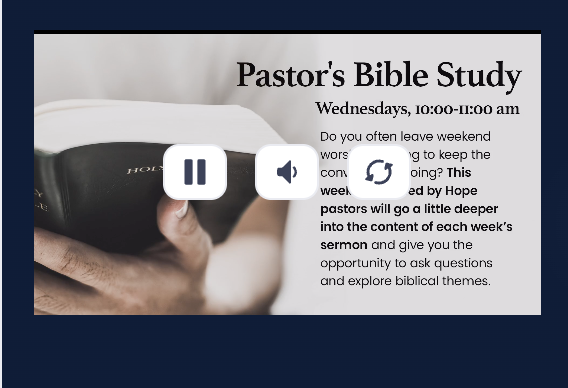
The player window will display the current stream if there is a live feed going to your device, and if your device is successfully connected to Sardius stream.
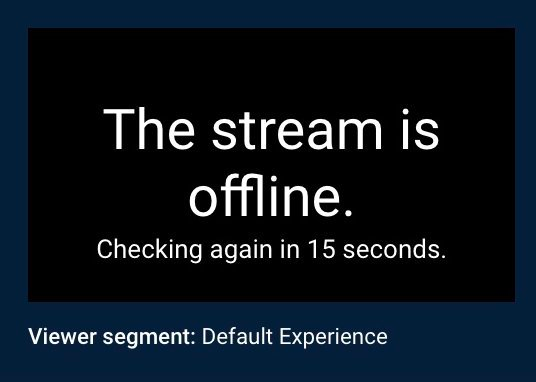
If there is a disconnect, the player will inform you that the connection is missing and when it will attempt to check the connection again on its own.
Device Status
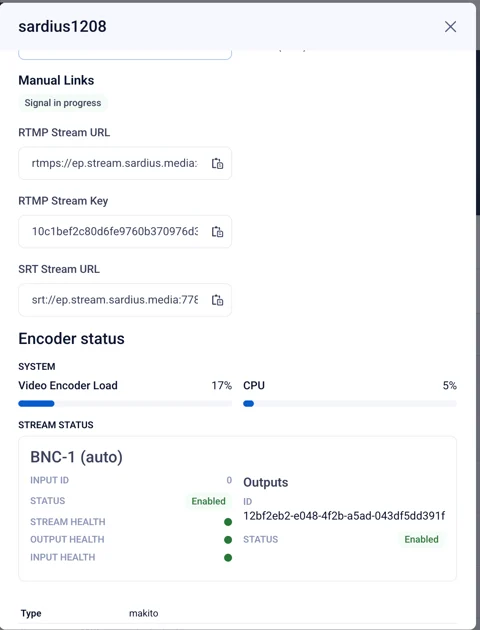
In the Device Status area, you can click on the name of your device to see an overview of that device, including Encoder status, Stream status, and other details regarding your encoder.
Streaming Outputs
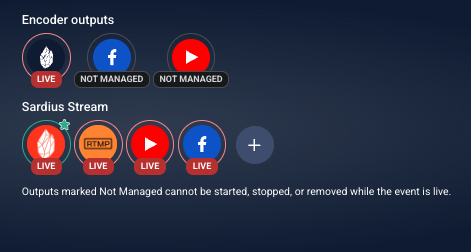
With the Live Event Manager, you can start/stop existing outputs on the fly, or easily add a new output, and with a future update, even add a stream to Facebook or YouTube.
Managed and Not Managed Outputs
The Live Event Manager shows two kinds of outputs:
- Managed Outputs are outputs added on Sardius Stream, such as Facebook, YouTube, and most RTMP destinations. These don't require a Template, and you can start, stop, and add them while your event is live.
- Not Managed Outputs are outputs configured directly on your encoder, such as Facebook, YouTube, RTMP, SRT, and HLS. Each uses its own Template. These appear in the Live Event Manager so you can see whether they're live, where they're streaming, and why they failed if something goes wrong. However, they can't be started, stopped, edited, or removed once your event is live.
If you hover over an output, it will show you the full name of that output.
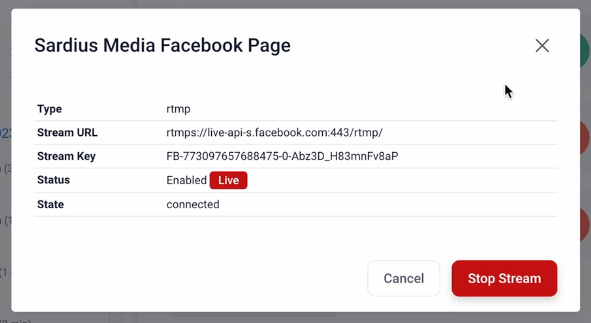
When you click on the output, you can see critical information regarding that output, including if your output is connected to your designated streaming destination, and if that output is live. For Not Managed Outputs, this window shows the output's name, a link to the output (if available), its destination or playback URL, and an error message if the output has failed. It does not include Start or Stop controls.
If your Managed Output is live, you can press the “Stop Stream” button. The modal will disappear, and your output icon will show as offline.
To start an output that is offline, click on your output and select the “Start Stream” button. The modal will disappear, and the output will show as processing. When it connects and establishes the stream, it will show as live.
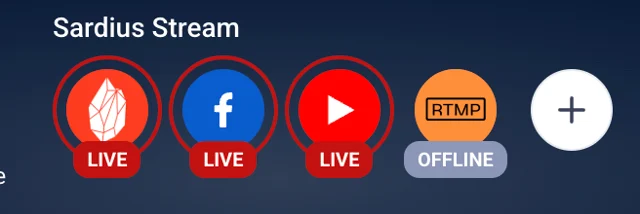
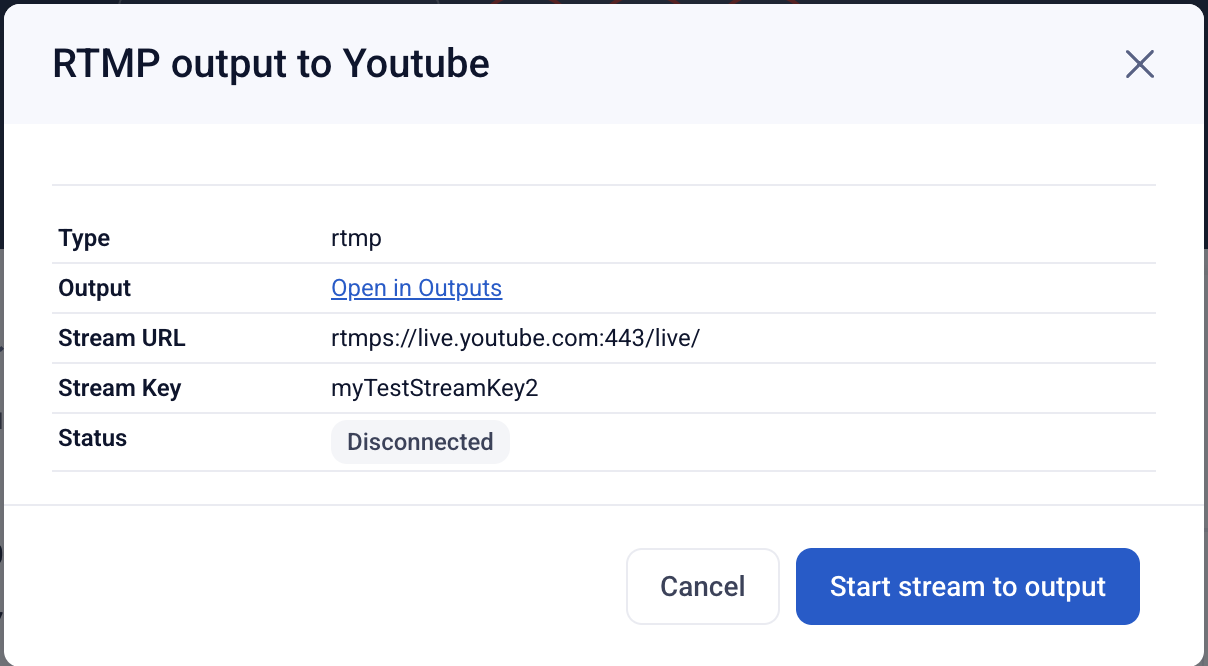
To add a new output, click on the + button. Outputs added from the Live Event Manager are added to Sardius Stream as Managed Outputs, so this option is only available when your event uses Sardius Stream.
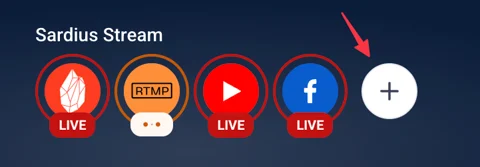
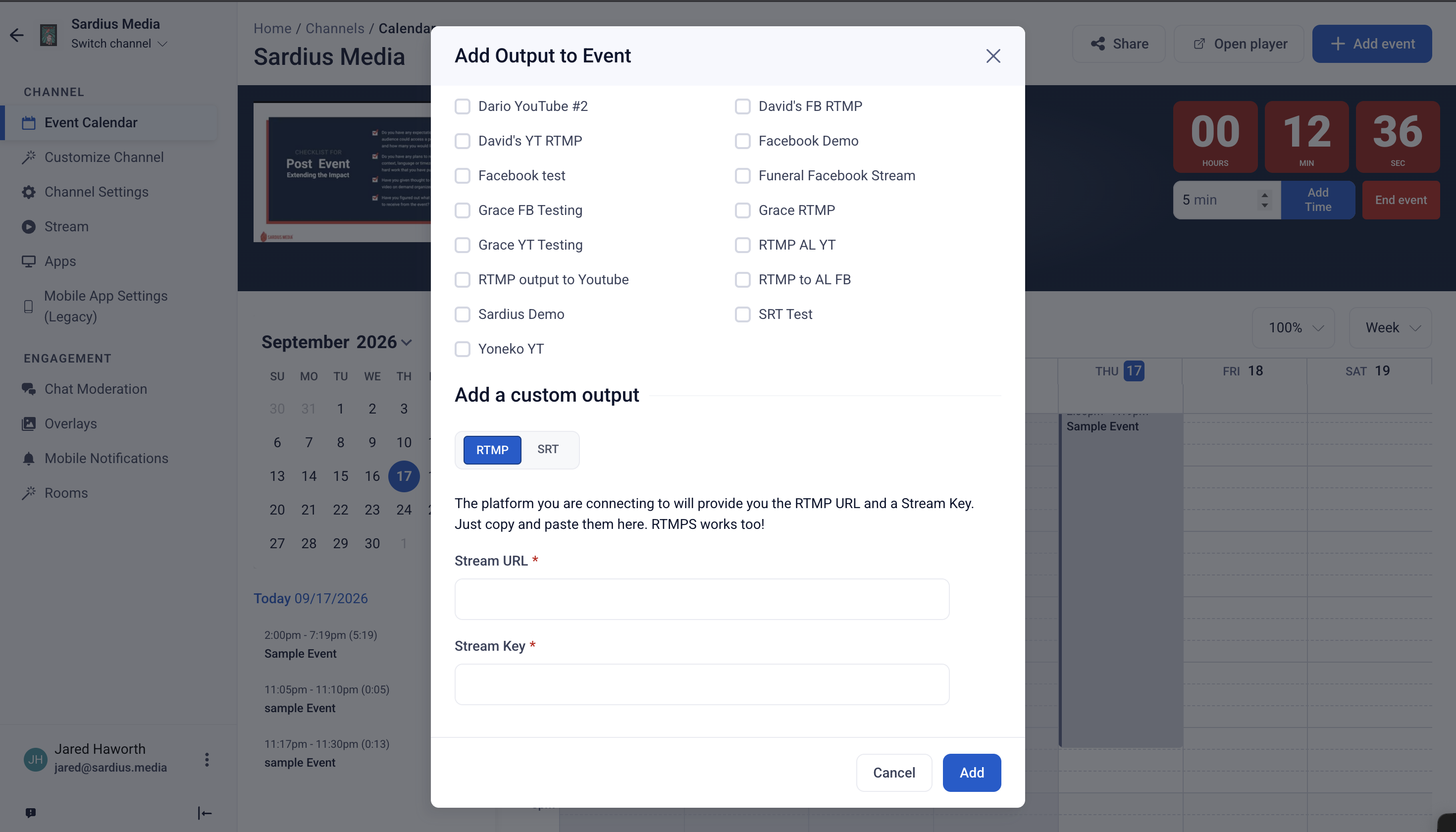
From the modal, you can select:
- Any output already connected to your channel, but is not in use.
- Any output that has been created, but not connected to a channel and isn’t already live.
- You can also add a new output on the fly using an RTMP or SRT connection (such as Facebook or YouTube)
After making your selection(s), click “Add” and your new outputs will appear in the Manager. If your event is already live, you can click on your output to start streaming to that output.
Event Timer
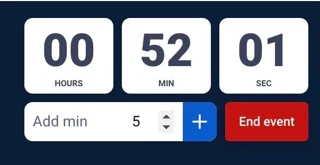
With the Event Timer Controls, you will be able to monitor how much time is remaining in the current event. You can also add time to the event using the input field below. Simply enter how many minutes you wish to add to the current event, and press the blue + button to complete the process.
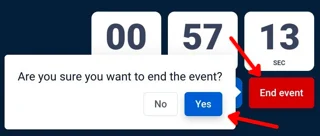
Should you need to end the event earlier than scheduled for any reason, you can click the “End Event” button. The Manager will ask you if you do want to end the event manually, and you will need to confirm by clicking “Ok.” If you clicked the button by mistake, you can click “Cancel” and your event will continue without interruption.
If your event was set to Auto Archive, that process will begin immediately.