Override Stream Settings for an Event
Updated
If you have enabled Sardius Stream and set up the Channel’s default streaming settings, you will have the option to override those default streaming settings per individual event.
Typical Override Cases
Occasionally, you may have an event that will need to utilize a different source or outputs. Some common override instances are:
-
Needing to use a different encoder from a different source, such as going live from a different location than your primary venue.
-
Needing to stream to different outputs than other events on your calendar. For example, streaming only to the Channel’s default player and any external outputs such as Facebook or YouTube.
-
You want to play back an earlier event you previously recorded for a later time. We call this a Simulated Live event.
How to Override
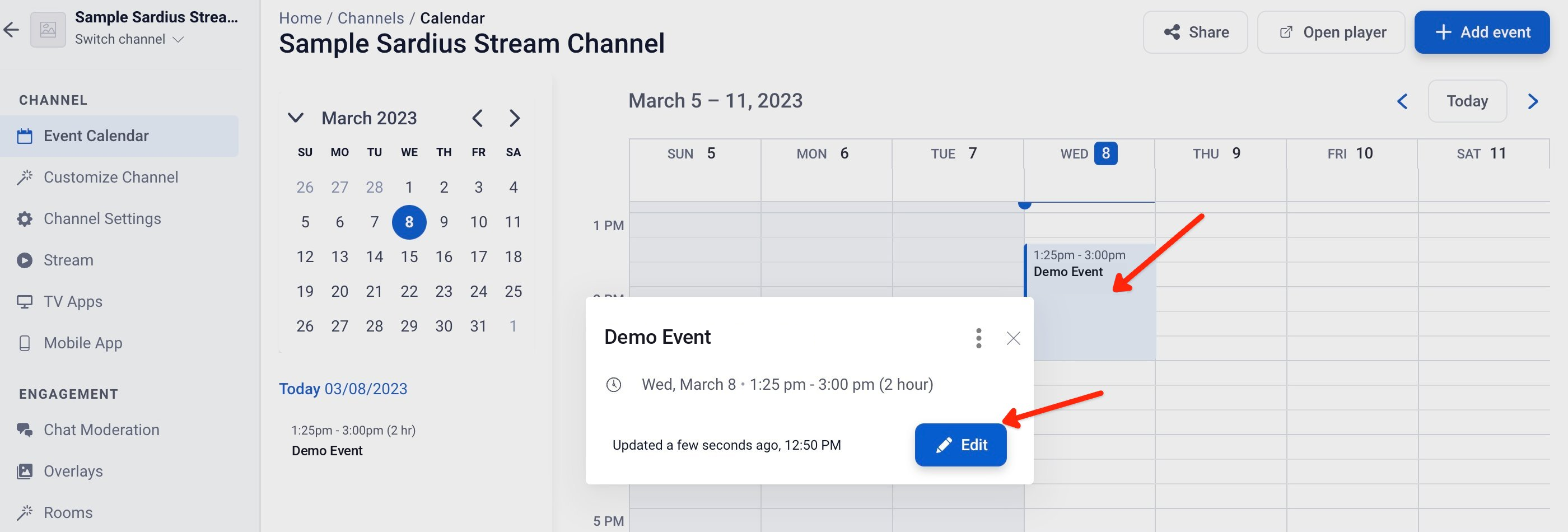
- Access your Channel’s Event Calendar and locate the event you wish to override the stream settings for. Select the event and click “Edit.”
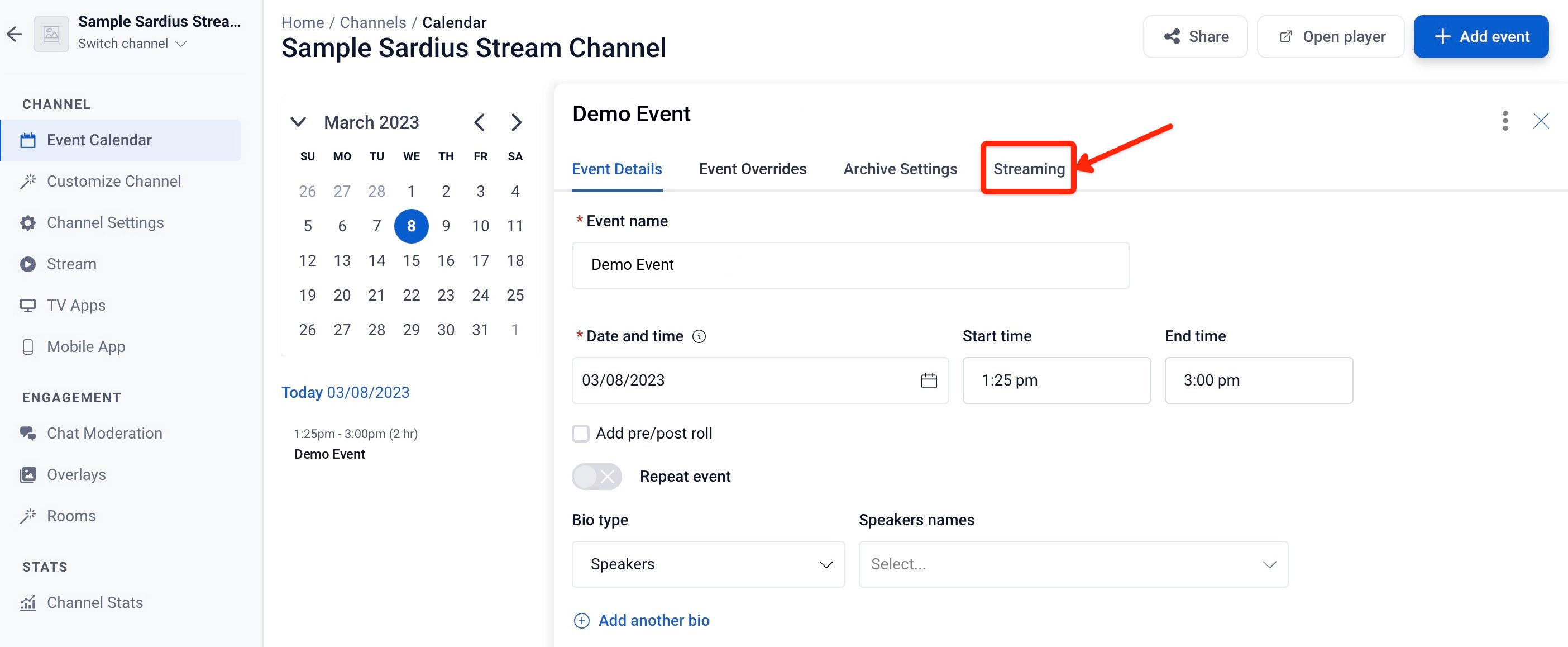
- From the event’s details page, click on the “Streaming” tab
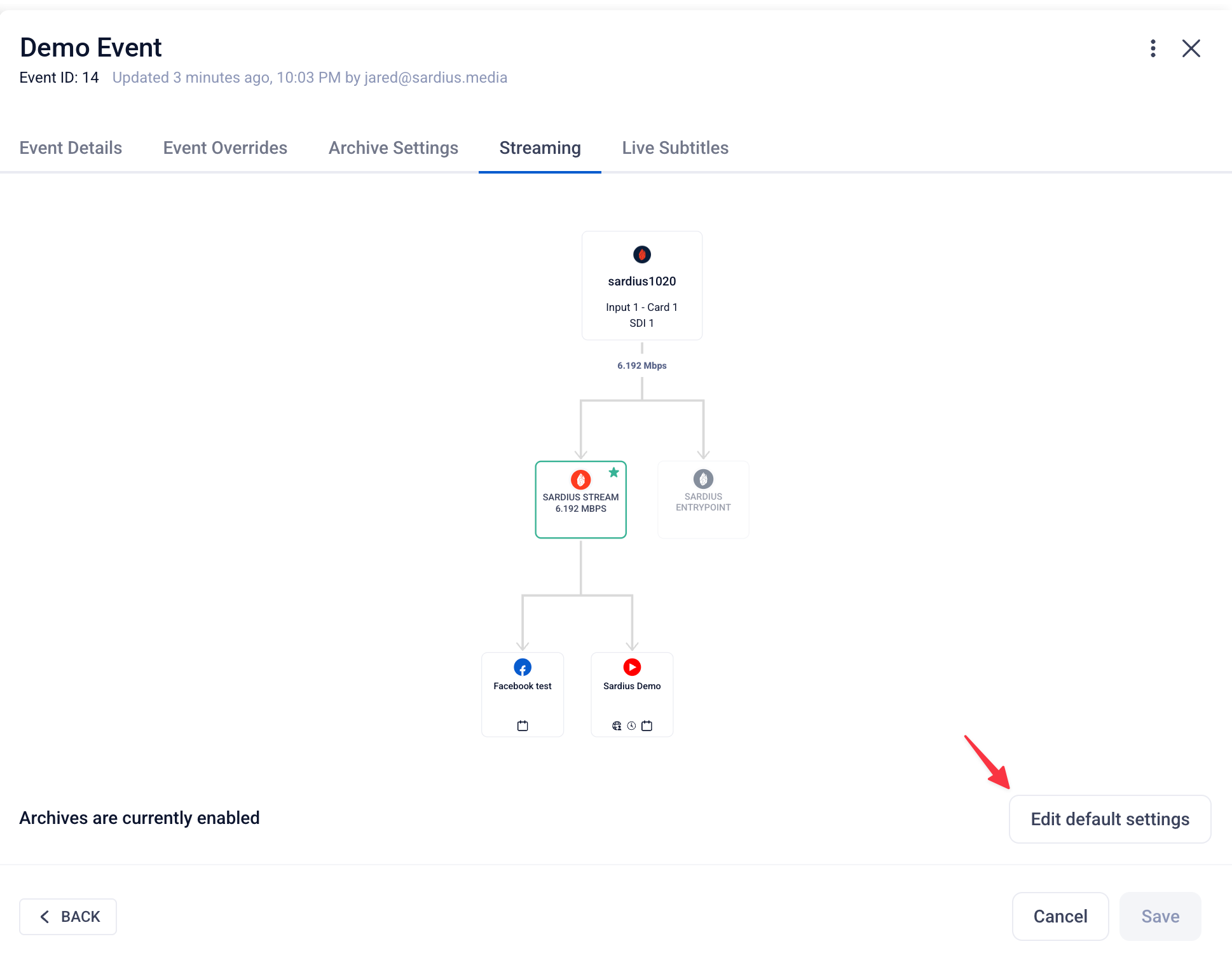
- From the Streaming tab, you will be able to see the Channel’s default streaming settings. To override these settings, click the “Edit default settings” button.
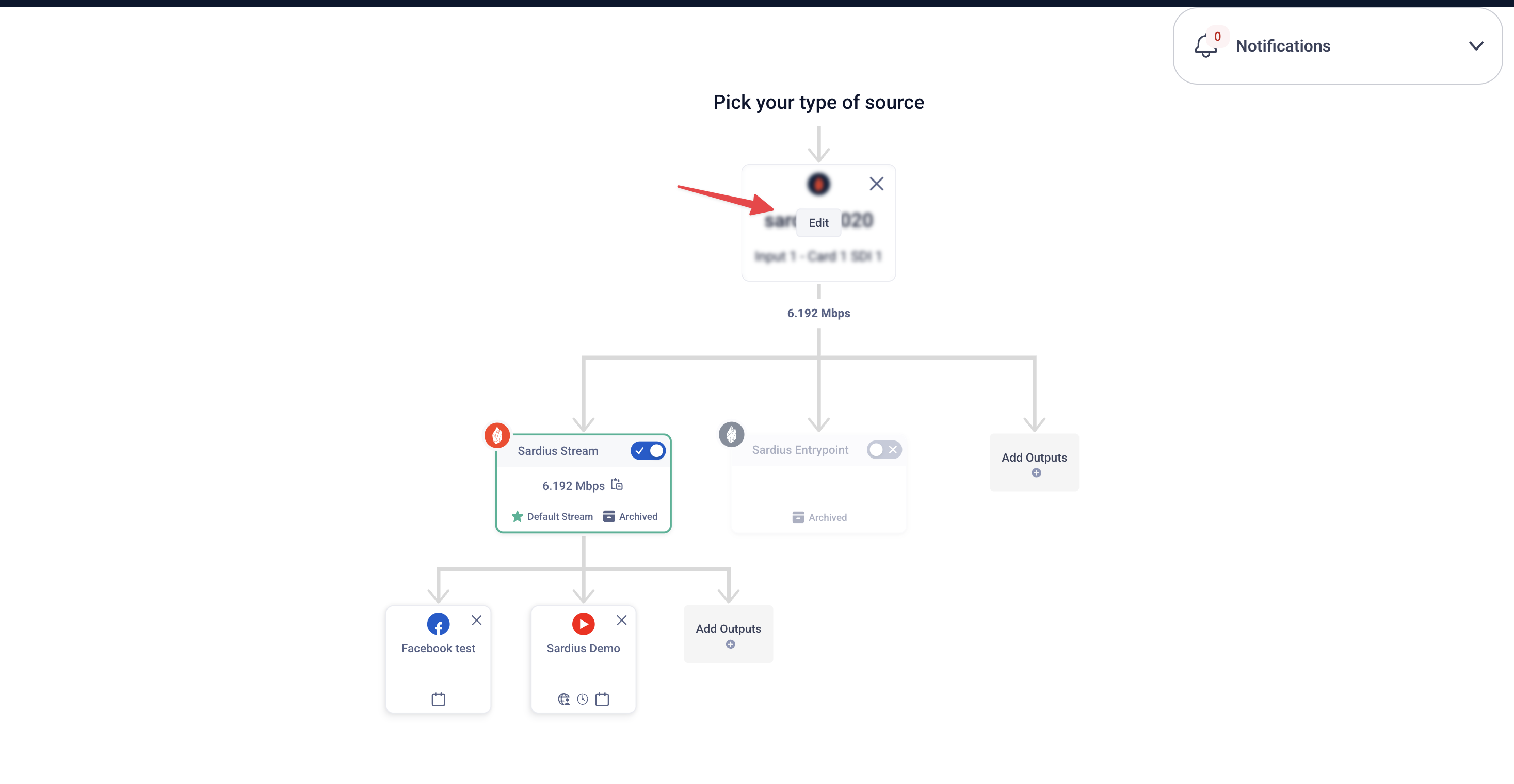
This will open the Stream Stepper where you can select a new source by hovering over the default source and selecting edit
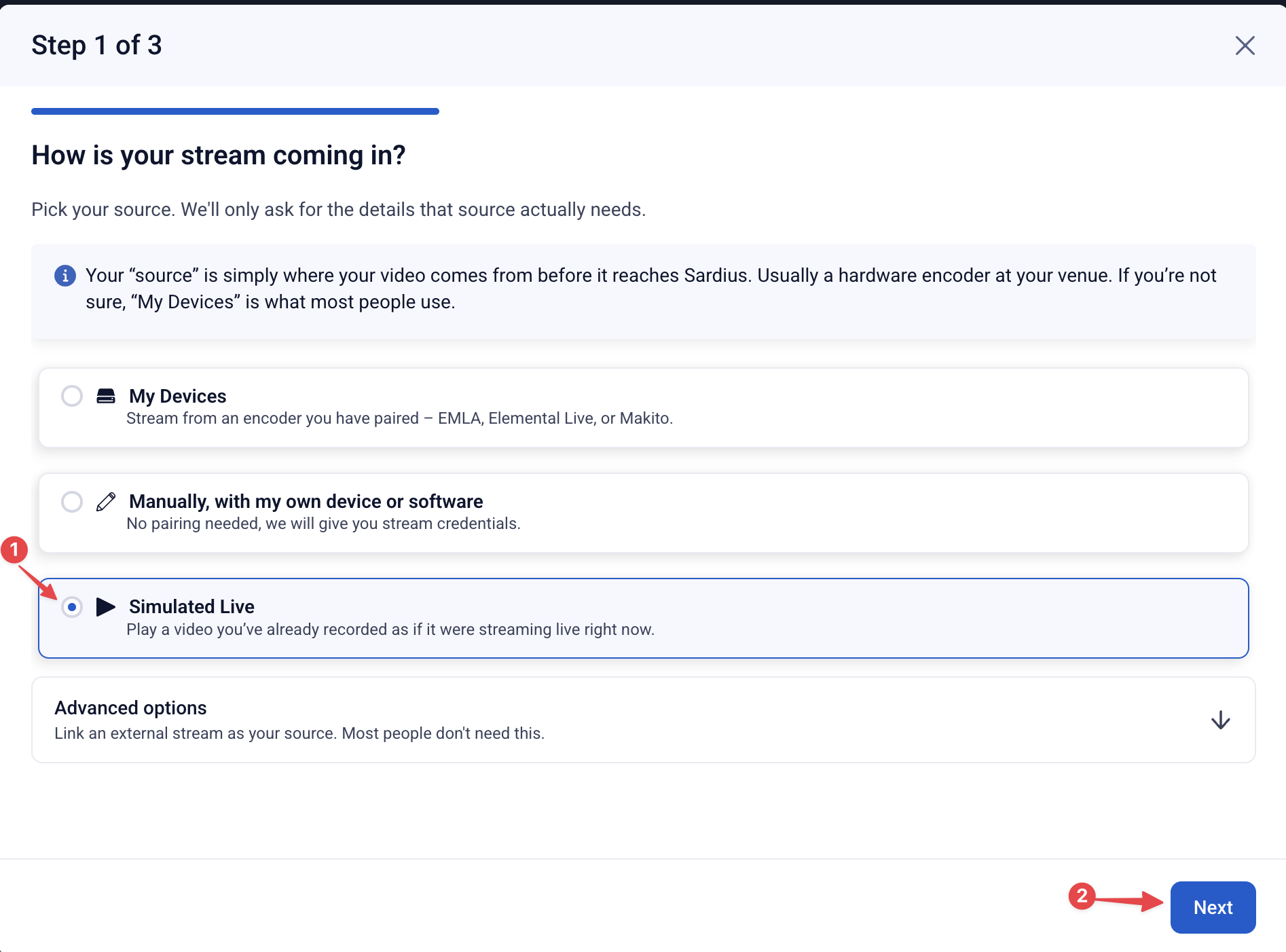
- A modal will open, prompting you to select a new source. For this example, we will select Simulated Live.
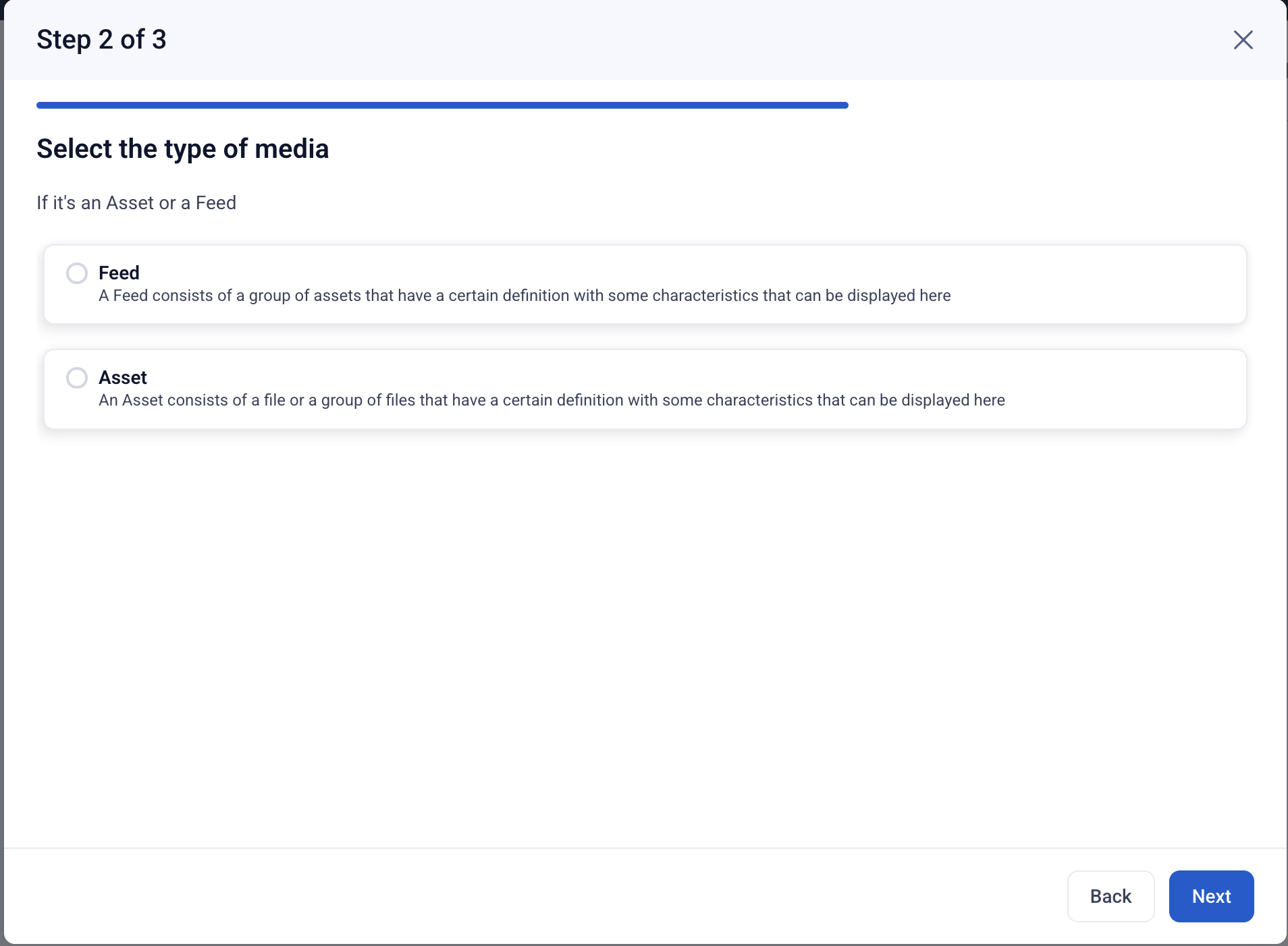
- Depending on your account’s available features, you will be able to connect an Asset or a Feed to your Simulated Live.
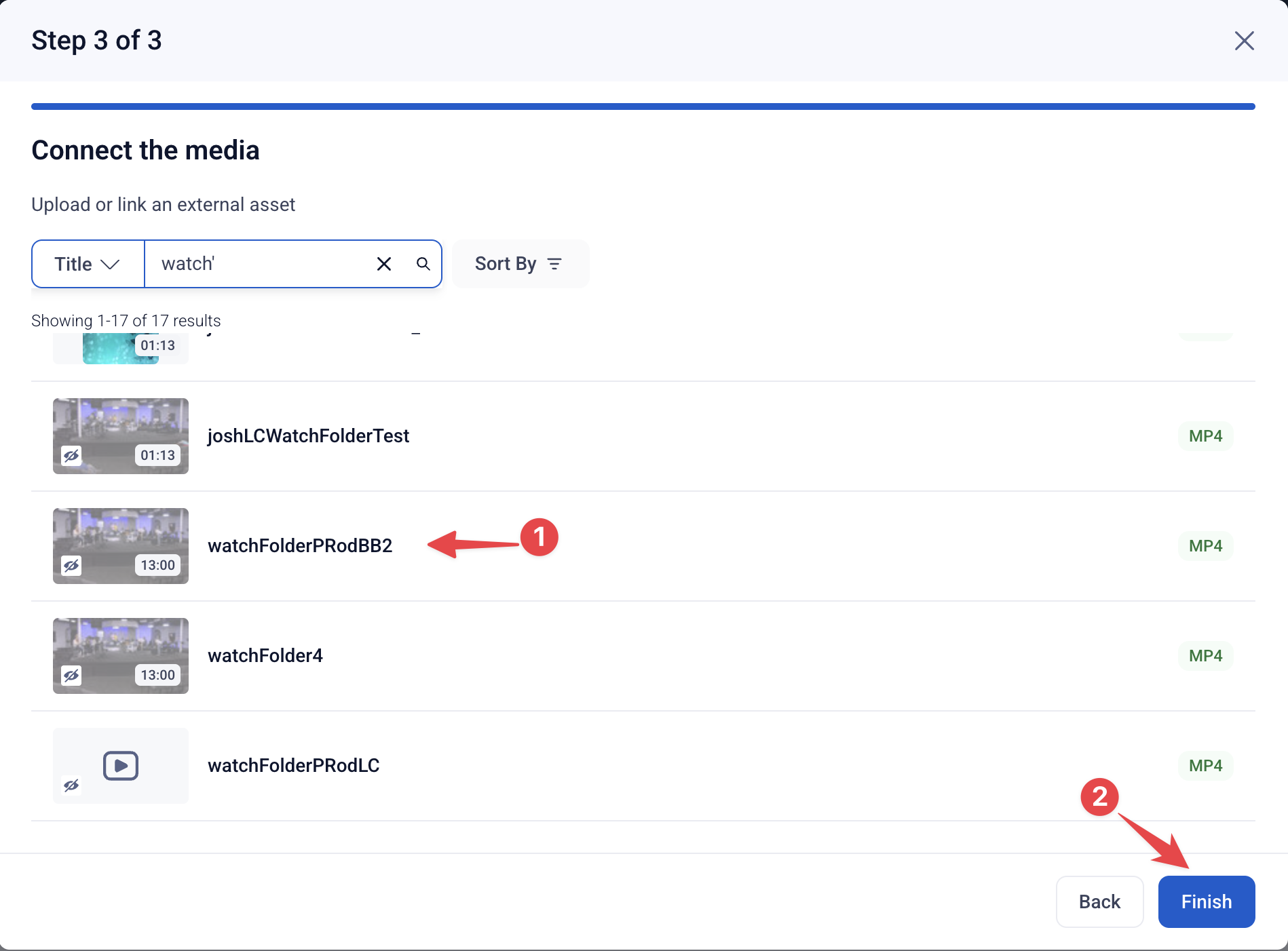
- Select the Asset or Feed you would like to play out using Simulated Live. When you have your Asset or Feed selected, click “Finish.”
- After selecting a Feed or Asset, you will be taken back to the Stream Stepper for review.
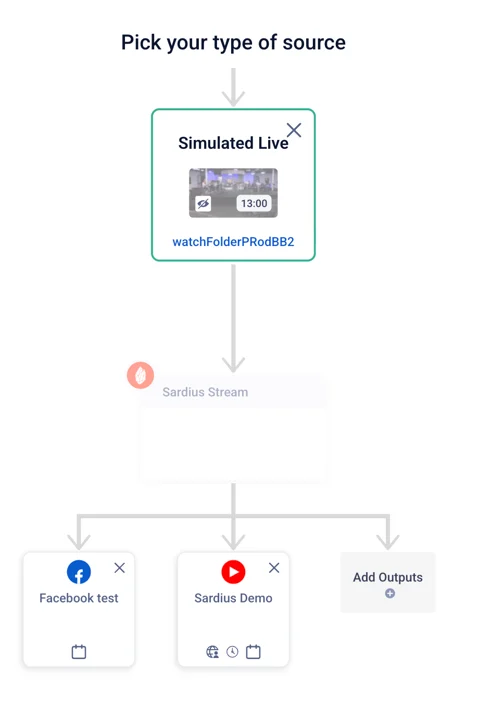
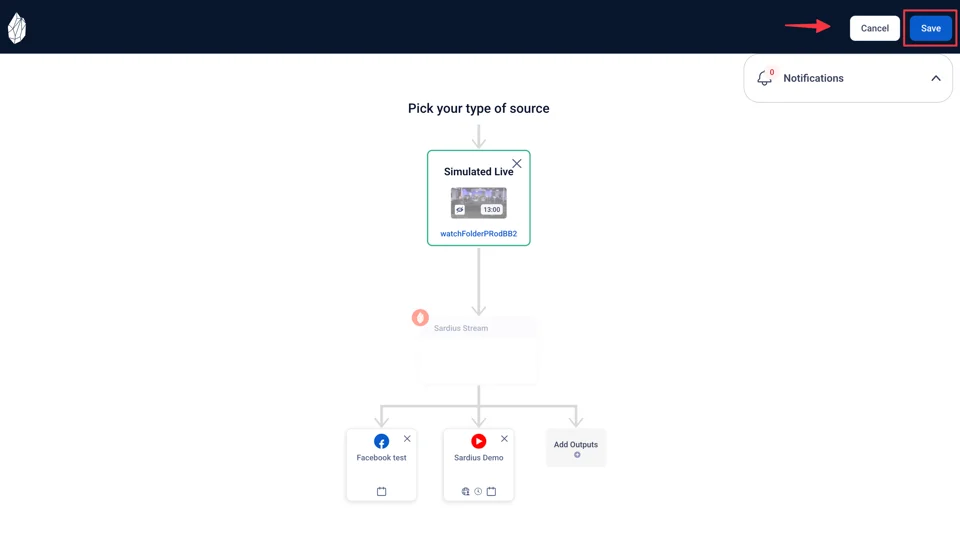
- If everything looks good, click “Save” in the upper right corner. Congratulations! You have successfully overridden the default stream settings for this event.