
Release 1.25
Updated
Welcome to Sardius Control Panel Release 1.25!
Table of Contents:
Featured Updates:
New Site Navigation
We have reworked the way you navigate around your site by adding a new site specific sidebar. The new site navigation sidebar allows you to quickly and easily navigate around your site and easily switch between the sites you are working on.
Calendar
Welcome to the new Sardius calendar experience. The sleek new design and new and improved side menu allows you to quickly create, navigate through, and edit your events.
More Information about the Calendar
All Updates:
General
- We are continuing to reinforce the branding and infrastructure of the Sardius Control Panel. We made small style adjustments and bug fixes throughout the app to help better the end-user experience.
Analytics
Account Usage Stats
It's important to be able to track your account's usage. We've added a Usage area in the account settings area of the Control Panel so that you can easily check your account's storage, delivery usage, and other usage stats. 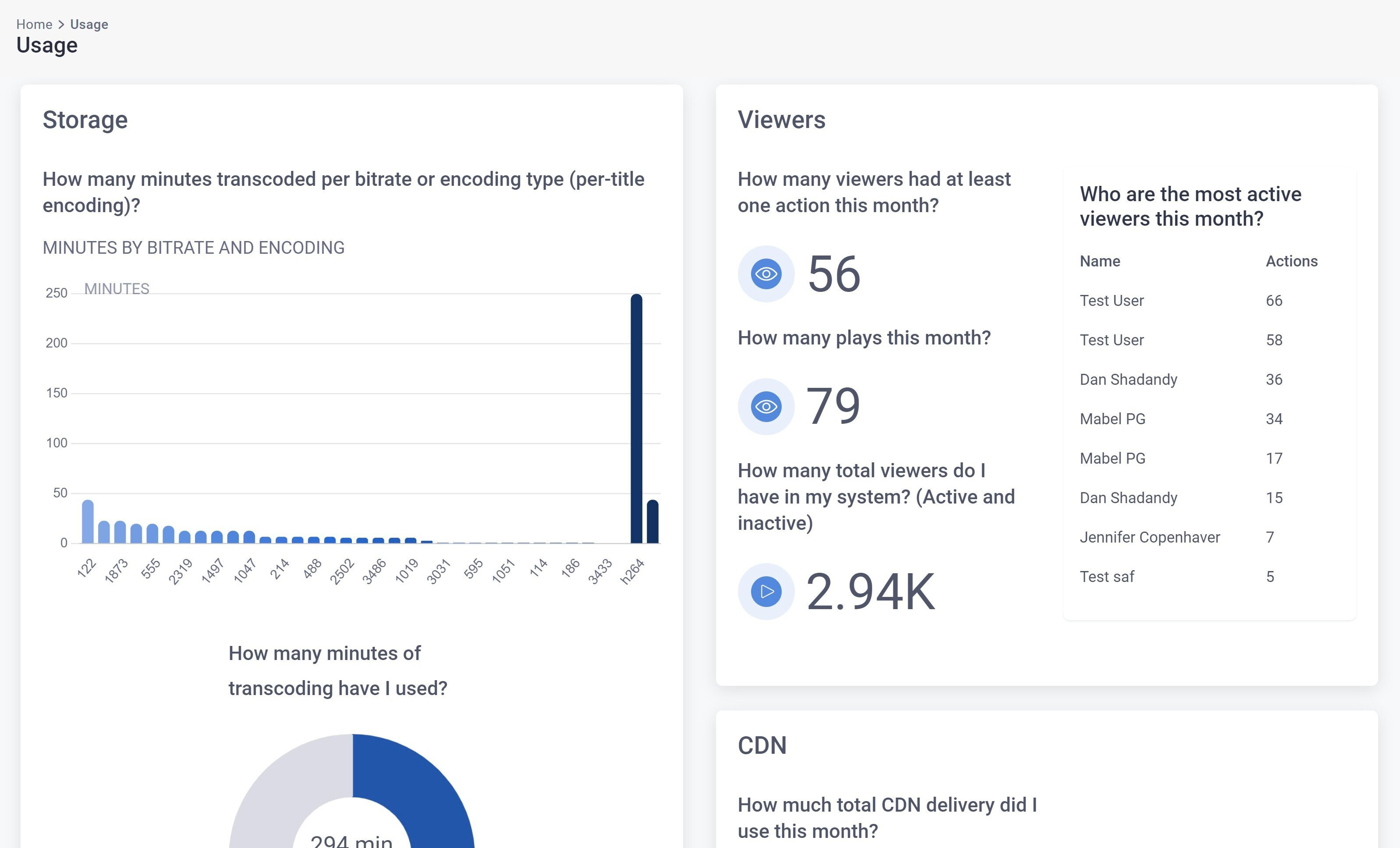
You can access the Usage screen by clicking on the gear cog at the top of the sidebar and clicking the "Usage" menu item.
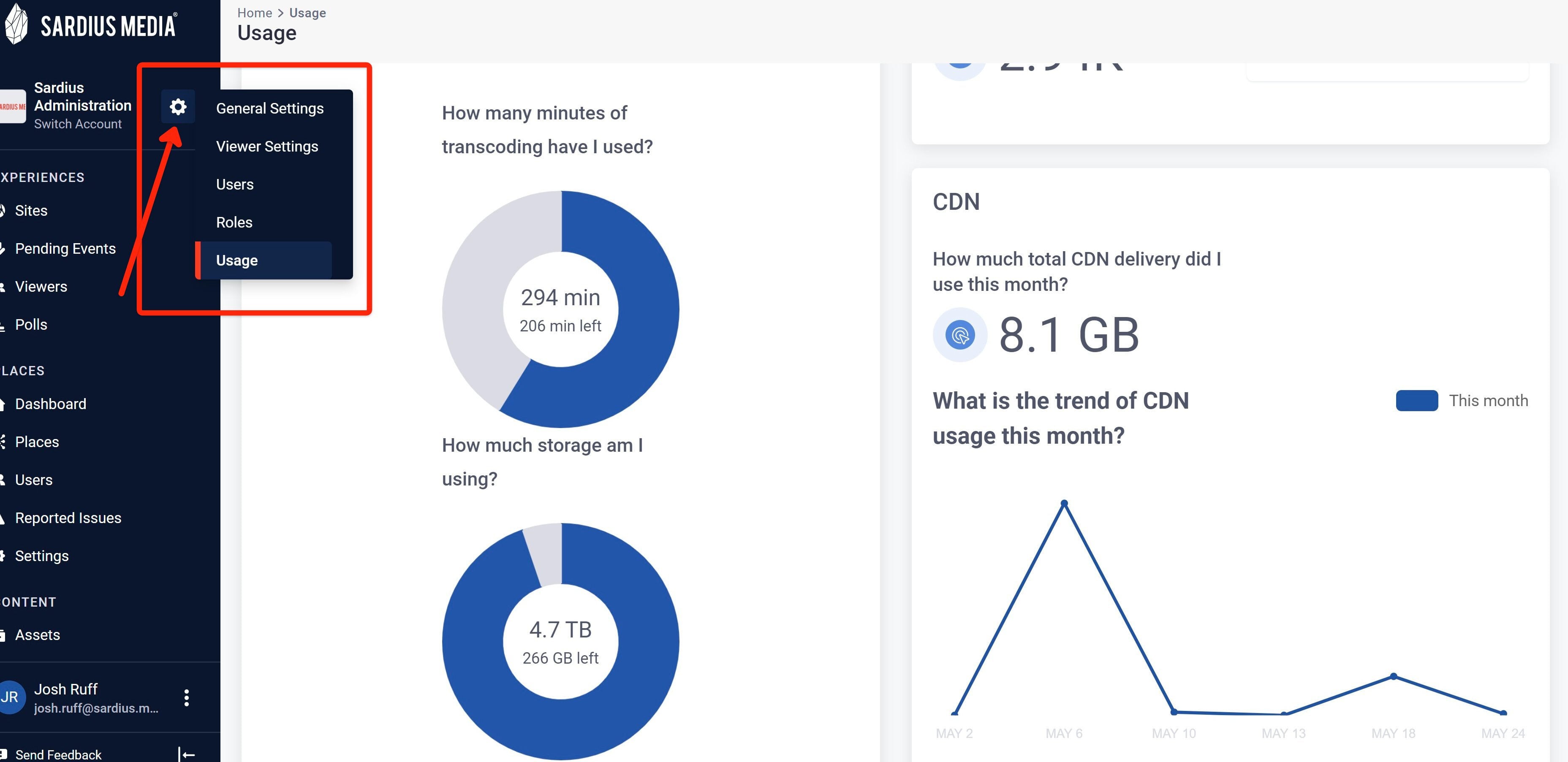
The usage screen answers the following questions related to your account:
-
How many minutes transcoded per bitrate or encoding type?
-
How many minutes of transcoding have I used?
-
How much storage am I using?
-
How many viewers had at least one action this month?
-
How many plays this month?
-
How many total viewers do I have in my system? (Active and inactive)
-
Who are the most active viewers this month?
-
How much total CDN delivery did I use this month?
-
What is the trend of CDN usage this month?
-
How many sites do I have?
-
How many player only sites do I have?
-
How many archived sites do I have?
Site Stats
Site stats serve as a quick overview reference to how your site has been performing over the last 30 days. It allows you to reference what devices your viewers are using as well as where they are watching from.
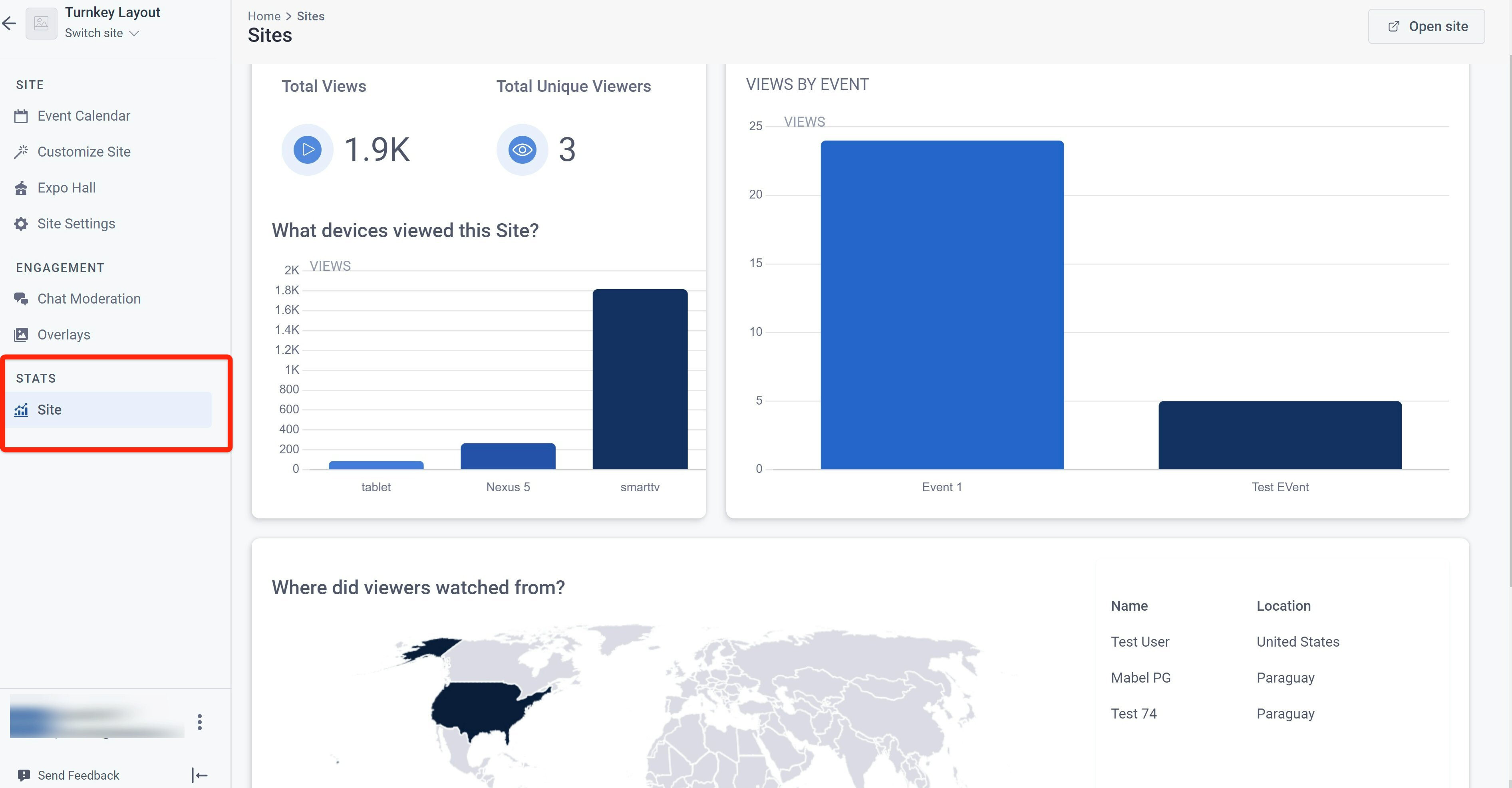
The site stats screen answers the following questions related to your site:
- What has been my most popular event?
- Total Views?
- Total Unique Viewers?
- What devices viewed this Site?
- Where did viewers watch from?
Commerce Stats
The commerce stats screen gives your team insight into how your ticket sales have been performing over the last 30 days. You can find this section of the control panel in the main sidebar navigation in the analytics section if you're account is making use of our Ticket Sales and Registration features.
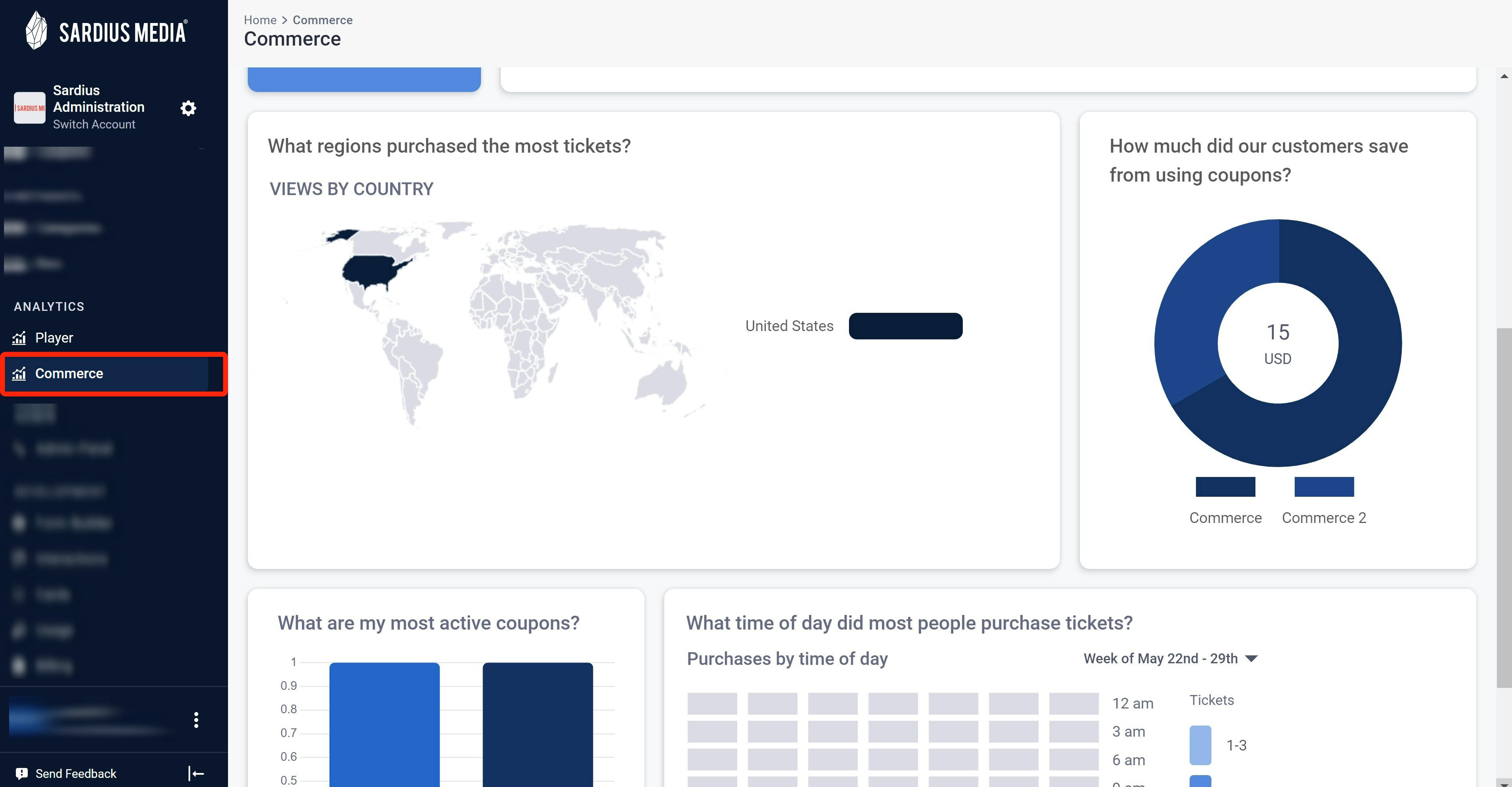
The commerce stats screen answers the following questions related to your ticket sales:
- How much money did I make?
- How many tickets have I sold?
- What regions purchased the most tickets?
- How much did our customers save from using coupons?
- What are my most active coupons?
- What time of day did most people purchase tickets?
Assets
-
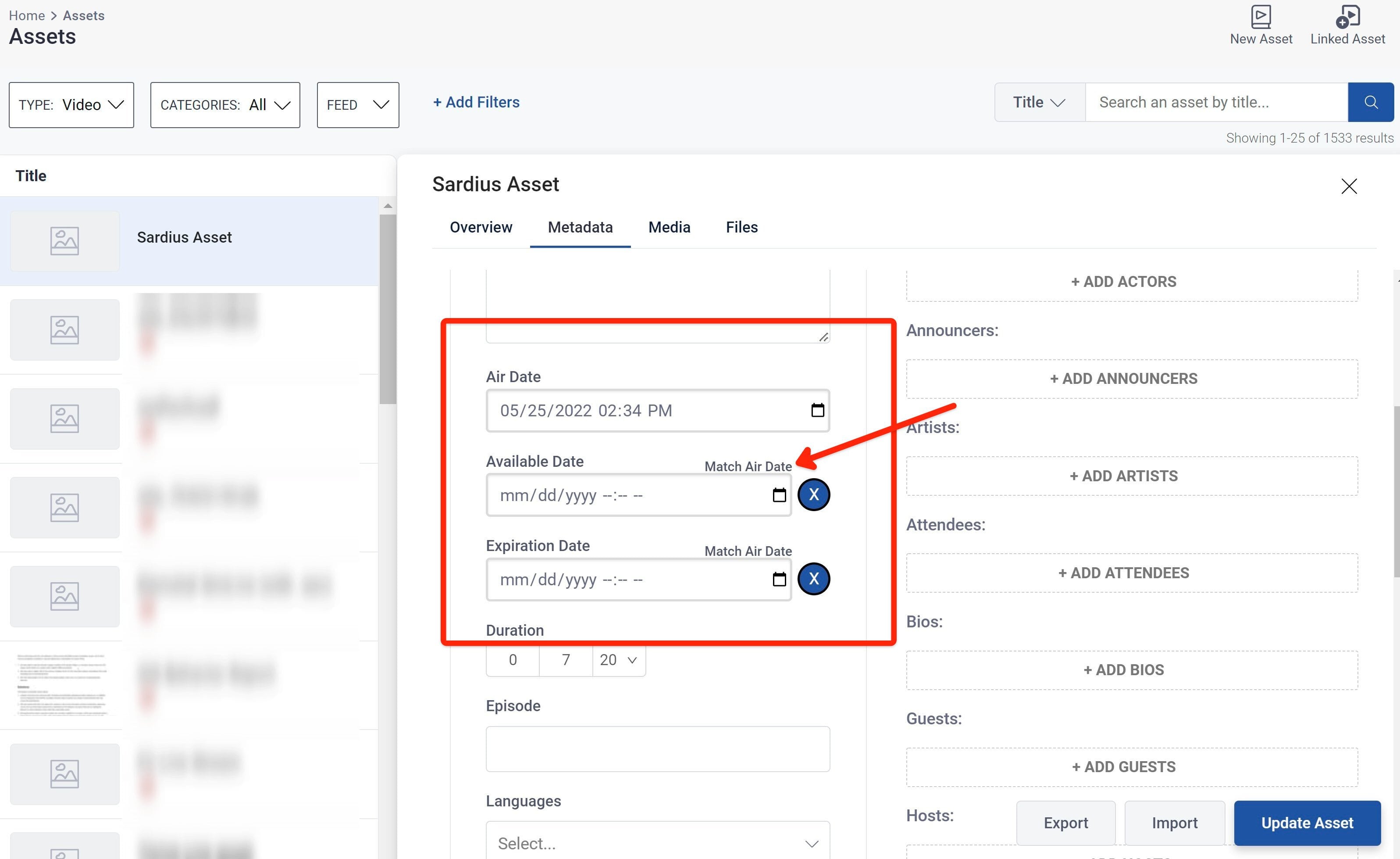
We reordered the Asset Lifecycle dates in the Asset metadata to the following order:
- Air Date
- Available Date
- Expiration Date
-
We added a "Match Air Date" button above the Available Date and Expiration date fields to allow for quick sync of your asset's lifecycle times.
-
Approval Status can now be updated on the Metadata tab as well as the Overview tab.
-
We've updated our Asset Picker for site's to have an iframe option so that you can iframe in players of your choice.
-
We've added the ability to upload VTT files to assets.
Calendar
The Site Calendar is one of the most heavily used sections of the Sardius Control Panel. We have spent a lot of time talking with our users about their needs and how we could improve the Calendar in order to make scheduling your events a smooth and enjoyable experience.
We cleaned up the User Interface of our calendar to make for better use of space and to give it a modern feel. We've also made better use of the mini calendar, and upcoming event sidebar. You can now click on and edit your events using with the Calendar itself or its sidebar.
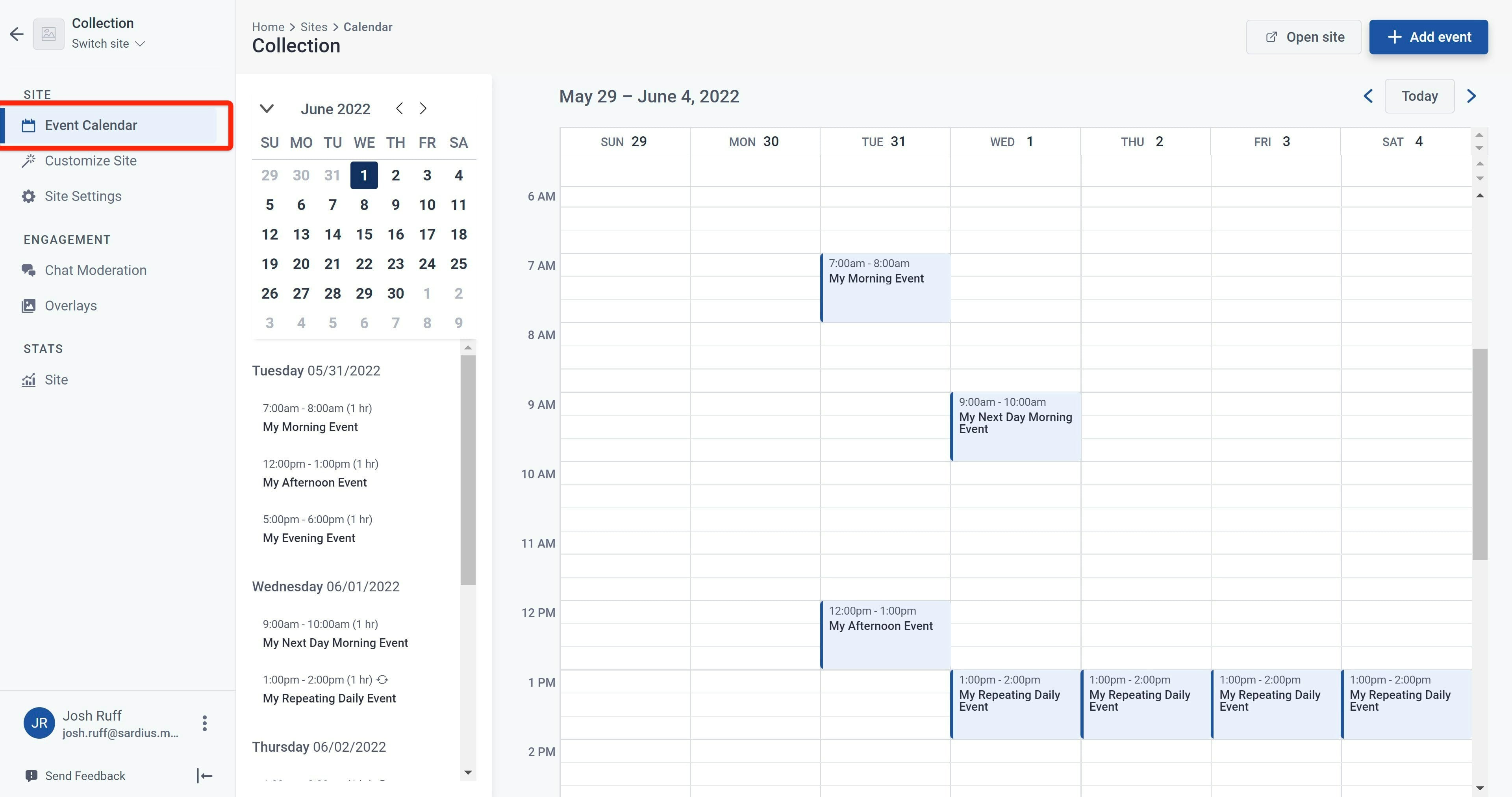
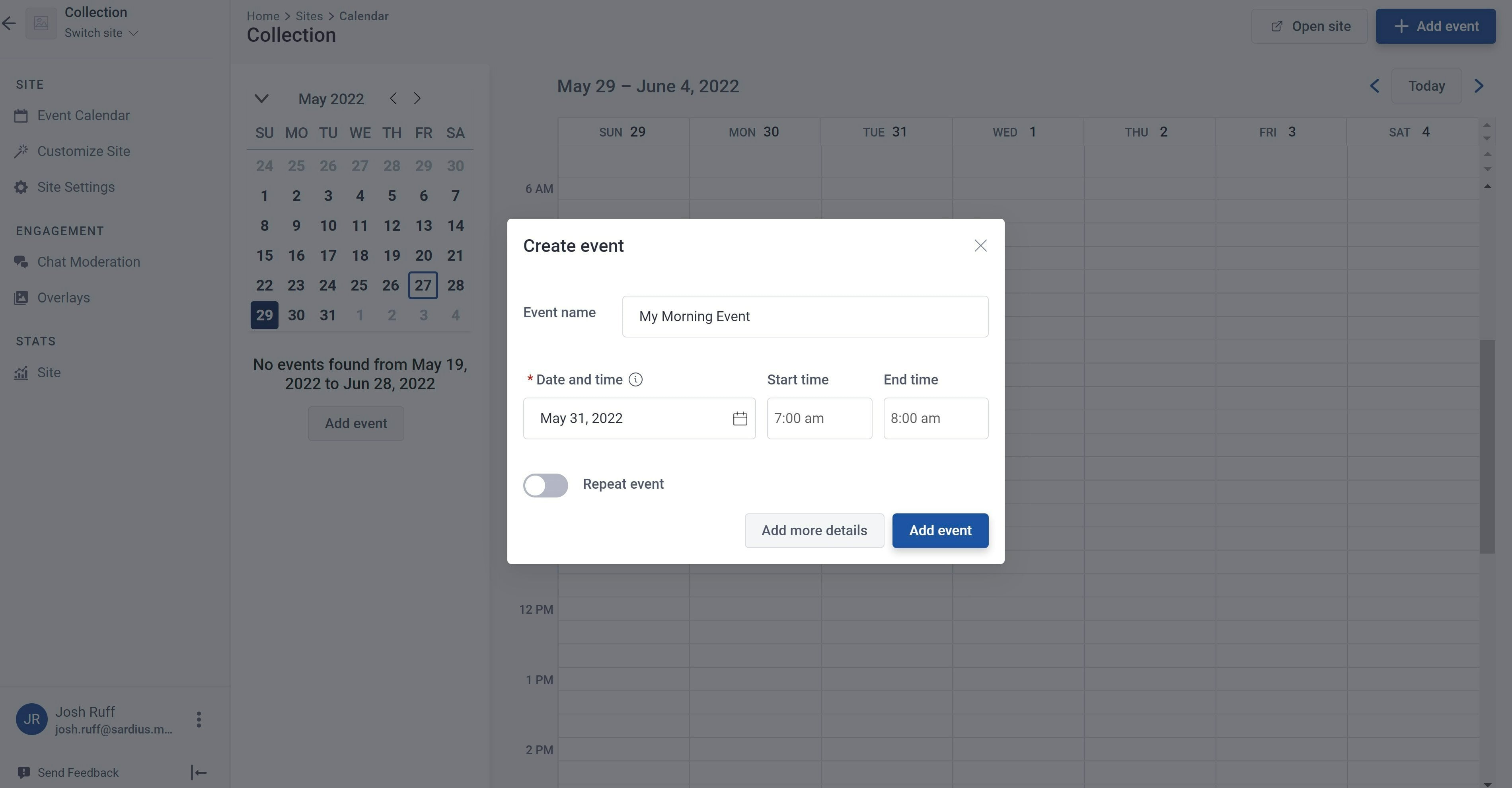
We've also simplified the create event flow to streamline the process for those who like to quickly create their events and add additional details at a later time.
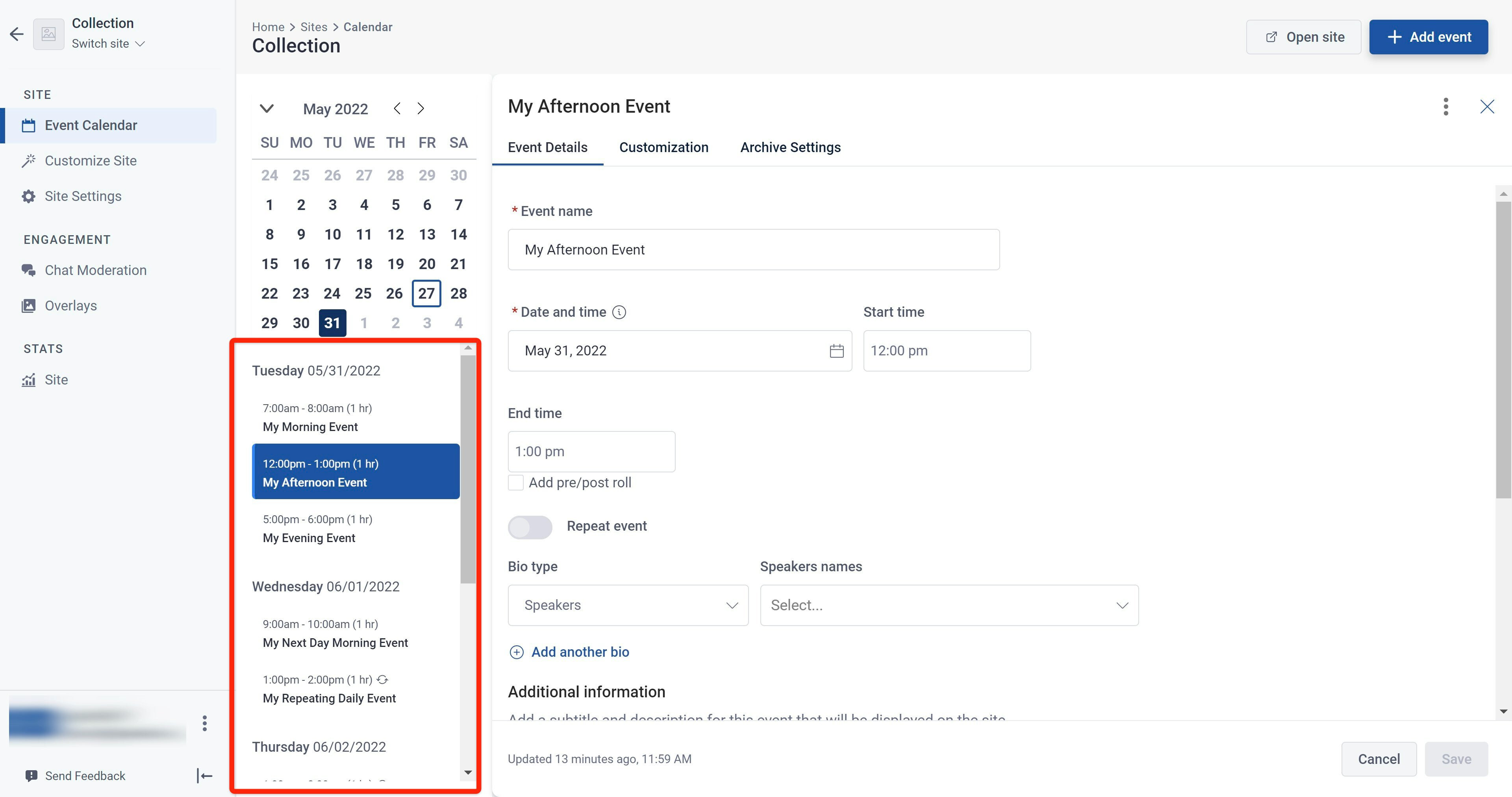
We wanted to make better use of the space when editing events so we created a new edit mode that allows for a streamlined experience when you may need to edit multiple events.
We organized the event settings into different tabs: Event Details, Customization, and Archive Settings.
- Event Details
- The most common event settings are found in the Event Details tab, where you can update the date and time of the event and provide additional information such as event speakers, event subtitles, and description.
- Customization
- Depending on which site layout you are using you will have varying live state layout customization settings for your event. The Customization tab allows you to customize these settings across all of the Viewer Segments you are using for your event site.
- Archive Settings
- The archive settings tabs contain advanced settings to create instant video on demand archives from the event's live stream. Please note that this feature is limited to those who are using our streaming Entrypoint functionality. If it's something you're interested in exploring reach out to your account manager and we will walk you through the process and answer any questions you may have.
When you are in the edit event view you can use the upcoming event sidebar to quickly navigate between your events. This makes it easy when you need to make some quick edits across all your day's events.
To learn more about the different settings and functionality of the Calendar you can dig into the documentation here:
Places
Introducing Sardius Places - our multi-campus production support solution.
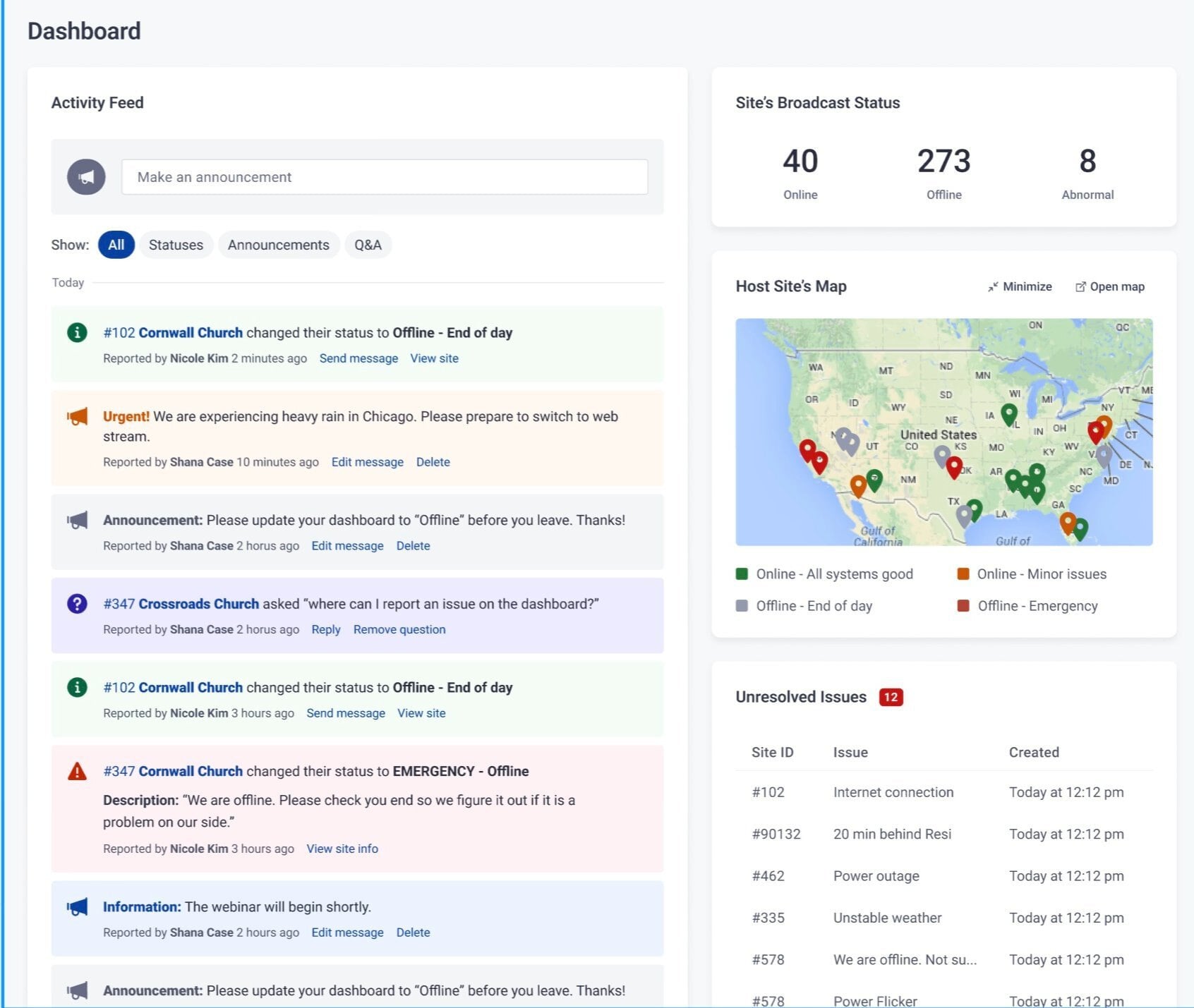
Places empowers your production team to monitor your remote multi-campus production teams. You can add new places, team members working or volunteering at those Places, and track the status of how your stream is performing across all your places. You can also answer questions, and send announcement updates and info to keep all of your places up to date.
Places features a powerful internal admin dashboard where your admin team can monitor the Activity feed for changes in status, questions, and reported issues. From the admin area, you can also manage your Places, and Place Users, as well as set up your general settings, and schedule broadcast tests for your teams.
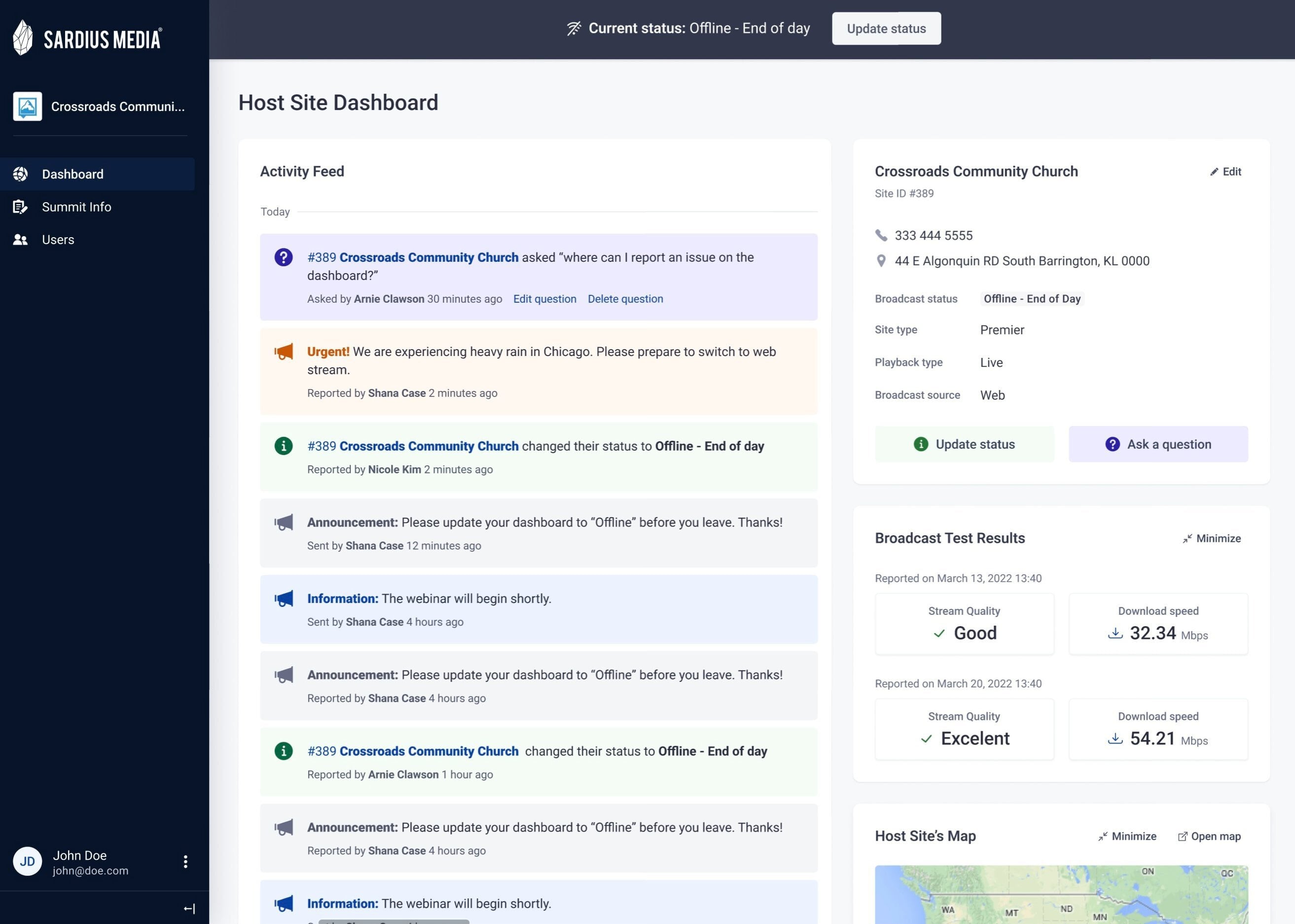
Places also gives your Place Users their own external login portal with a personalized view where they can view stream info, report status changes, ask questions, and enter their broadcast test results.
Places is a feature we can add to your account. If you are interested, reach out to your Account Manager or sales@sardius.media