Channel Card Overview
Updated
Channel Cards give you quick access to each channel so you can make changes, and they show you the channel's current status at a glance.
Live
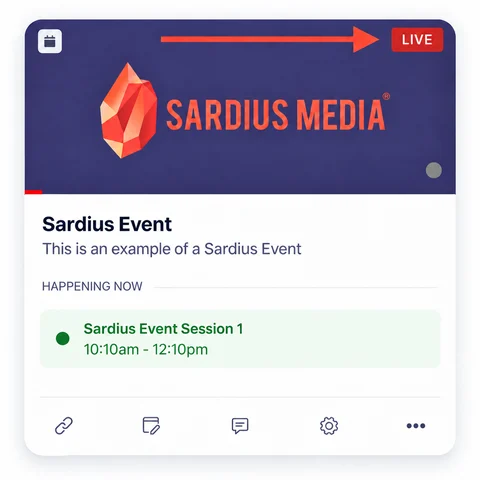
When a scheduled event is live, the Channel Card shows a red Live button.
Encoder Status
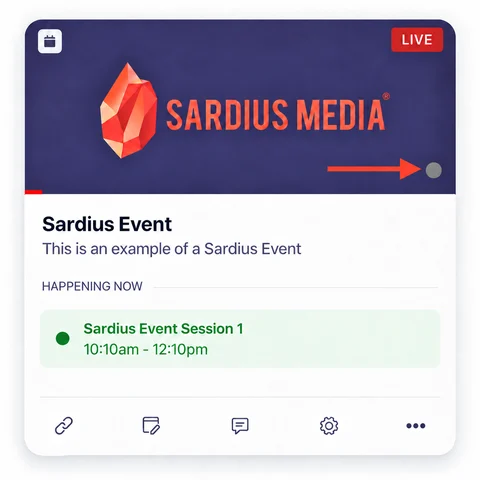
If your channel uses Sardius Entrypoint, the card shows whether the channel is receiving your signal:
- Green: the channel is receiving the stream.
- Red: the channel is not receiving the stream information.
- Gray: the stream is offline.
Channel Card Information
- Channel Name
- Description
- State (Upcoming or Happening Now). This is blank if nothing is scheduled.
- Scheduled Event Time
- Calendar Event Name
- Event Time: this shows one of three messages, depending on what's scheduled:
- Live event: "Ends in..." followed by the hours, minutes and seconds left in the event.
- Upcoming event: "Starts in..." followed by the hours, minutes and seconds until the event begins.
- No upcoming events: if nothing is scheduled in the next seven days, the card reads "No Events This Week," with a Create Event prompt below.
Channel Card Icons
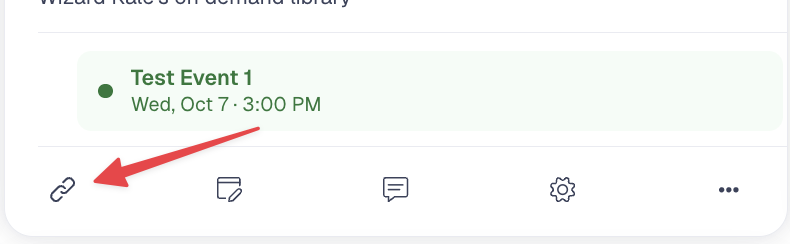
The icons at the bottom of the card let you jump straight into common tasks, from quick changes to archiving or deleting a channel.
- Open Channel: open and review your channel.
- Customize Channel: update your layout.
- Moderate Chat: open the chat tools for engagement and moderation.
- Channel Settings: view and update your channel's settings.
- More options: duplicate, archive or delete your channel.
Pin a Channel
Pin the channels you use most so they always stay at the top of your Channels list.
- On the Channels page, hover over the channel card.
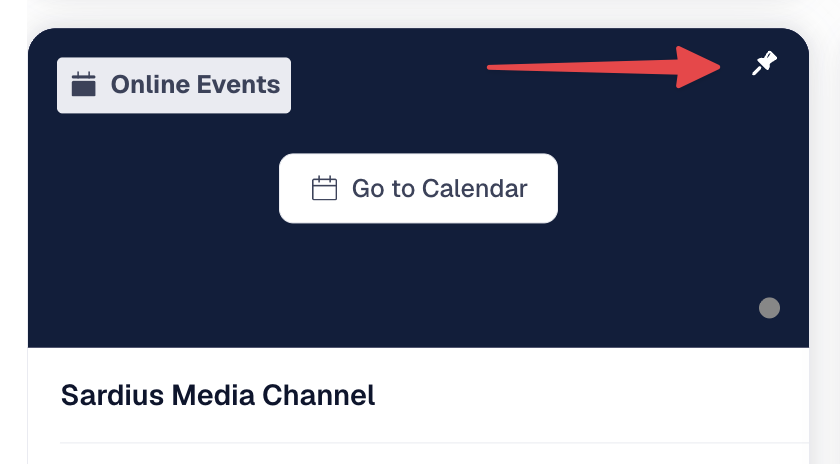
- Click the pin icon in the top-right corner of the card's image. The channel moves to the top of your Channels list.
- To unpin, click the pin icon again (Unpin Channel).