
Creating a Channel's Autoarchive Settings
Updated
Sardius's Autoarchive feature saves your live events automatically so they're ready for replay, your video library, or future events. Your channel's archive settings become the default for every event on that channel, and you can change them for individual events anytime.
Accessing Archive Settings
- Open the Sardius Control Panel and select Channels.
- Open your channel.
- In the left sidebar, click Stream, then select the Archive tab.
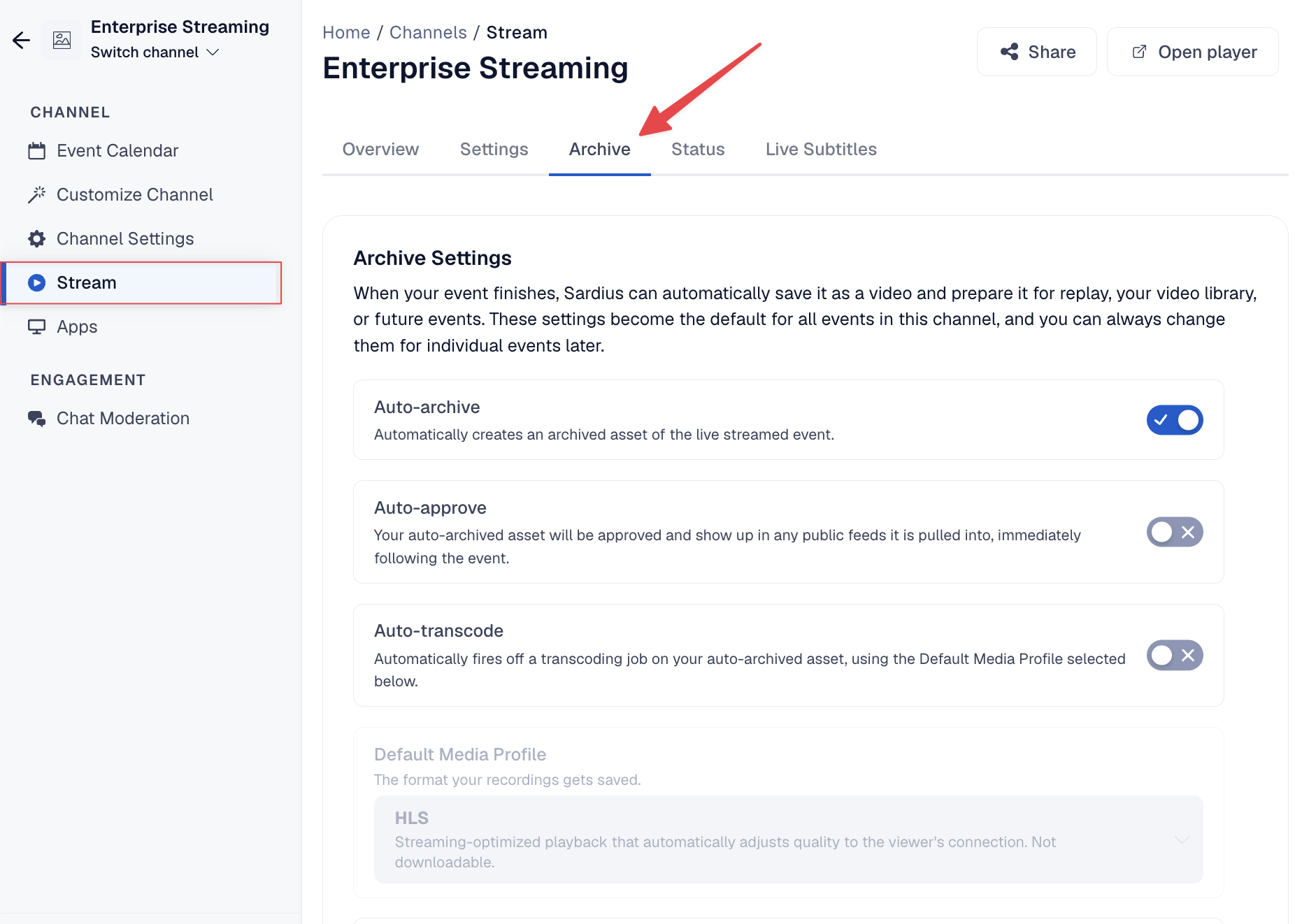
Archive Settings
Everything starts turned off. Turn on settings as needed
- Auto-archive: Automatically creates an archived asset of your live-streamed event.
- Auto-approve: Approves the archived asset right after the event, so it shows up immediately in any public feeds it's pulled into.
- Auto-transcode: Automatically starts a transcoding job on the archived asset, using the Default Media Profile.
- Default Media Profile: The format your recording is saved in (for example, HLS for streaming playback, or MP4 for downloads). Available once Auto-transcode is on.
See Explaining Media Profiles for more.
- Include pre and post-roll in recordings: Adds the pre-roll and post-roll content to the archived recording. Only applies to Sardius HLS Entrypoint streams.
How long do we keep recordings?
- Keep forever (default): Recordings stay until you delete them.
- Auto-delete after __ days: Recordings are deleted automatically after the number of days you enter (30 by default).
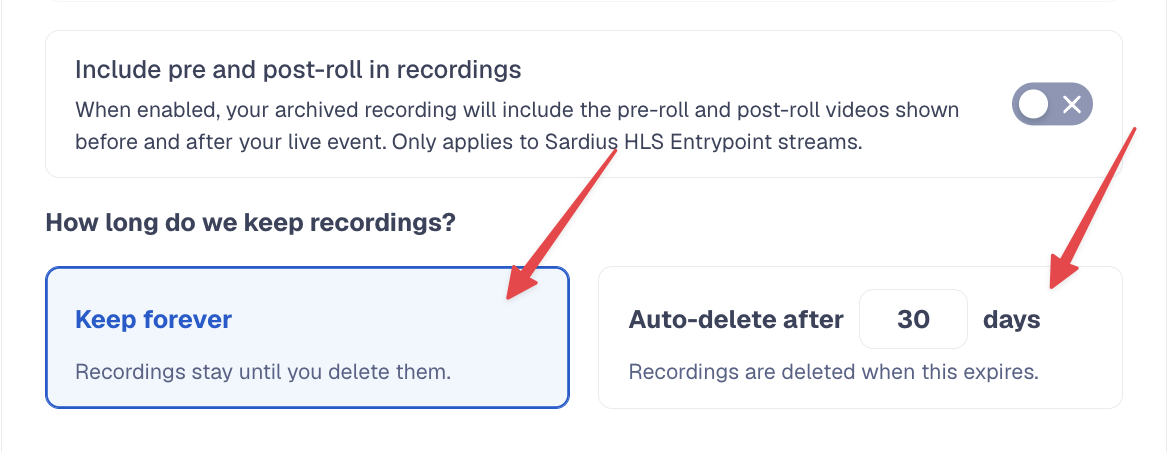
Default Metadata and Categorization
Set details that are added to every archived recording automatically, so you don't have to tag each one by hand.
- Asset metadata: Title and Languages
- Categorization: Categories, Series, Tags, Topics and Album
You can create a new series or album directly from this page with Add new series or Add new album.
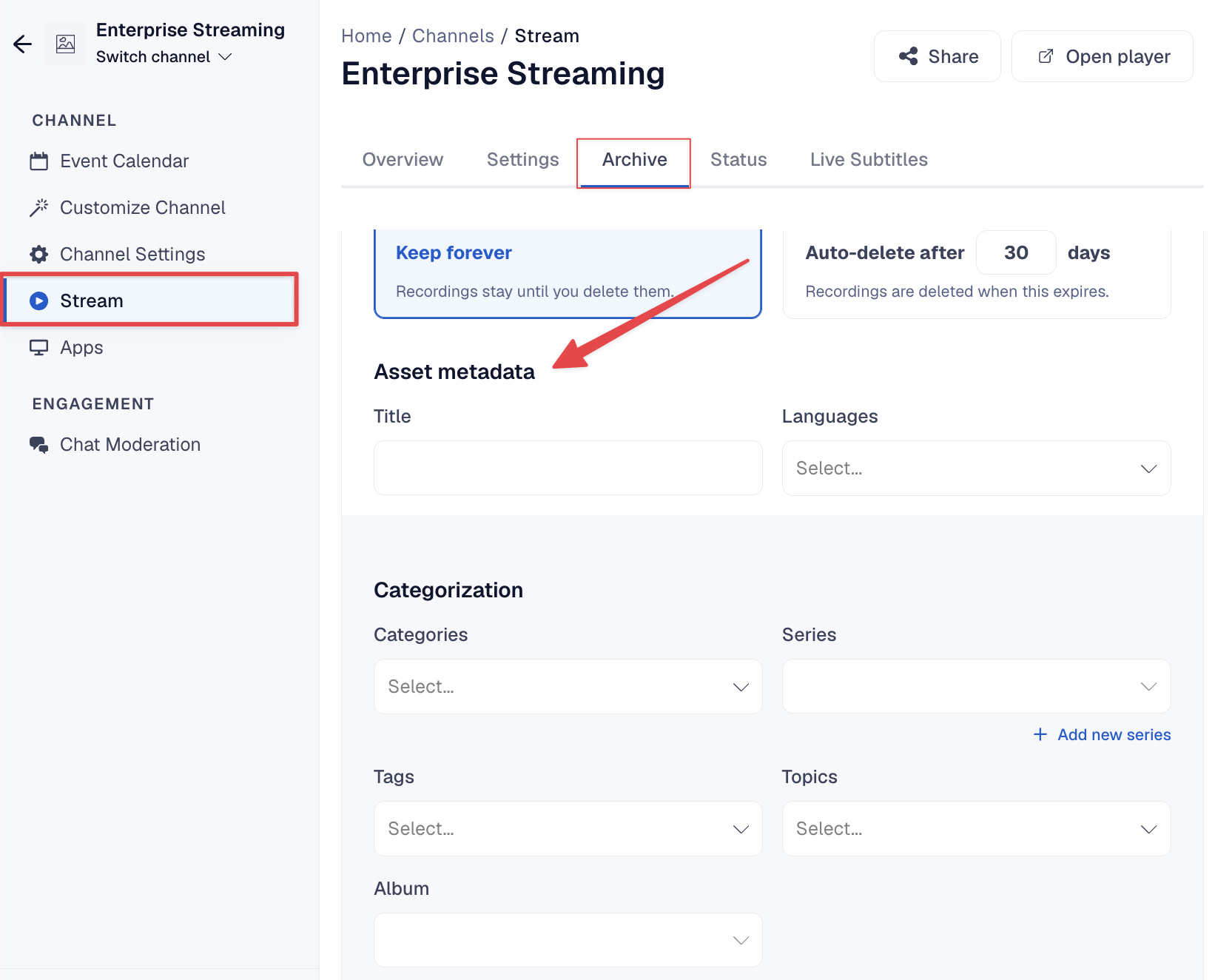
Learn more in Understanding Categories, Series, Albums, Tags, and Topics.
After configuring your defaults, click Update Channel. Individual events can override these defaults from the event's Archive tab in the Events Calendar.
Related articles