
Manual Sardius Stream Set Up
Updated
A Manual Sardius Stream is used when you are sending a live video feed to Sardius using:
- RTMP or RTMPS
- SRT
This option is ideal when:
- You are using a software encoder (OBS, vMix, Wirecast, etc.)
- You are manually configuring a hardware encoder or PTZ camera
- You need direct access to your stream URLs and keys
Set Up a Manual Stream
Enable Streaming for Your Channel
To create default stream settings, you must first enable streaming on your Sardius Channel.
Select Stream from the Channel sidebar navigation and click Enable Streaming.
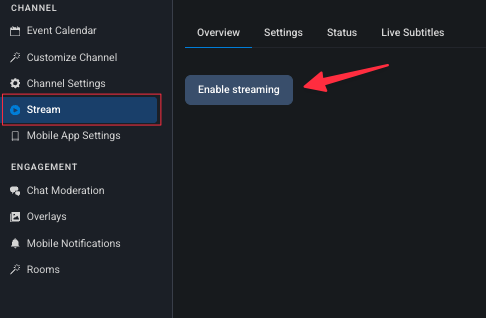
Your channel will be prepared for streaming in the background. This only takes a few seconds, so don't leave or refresh the page. Once it's ready, you'll be prompted to set up your default settings.
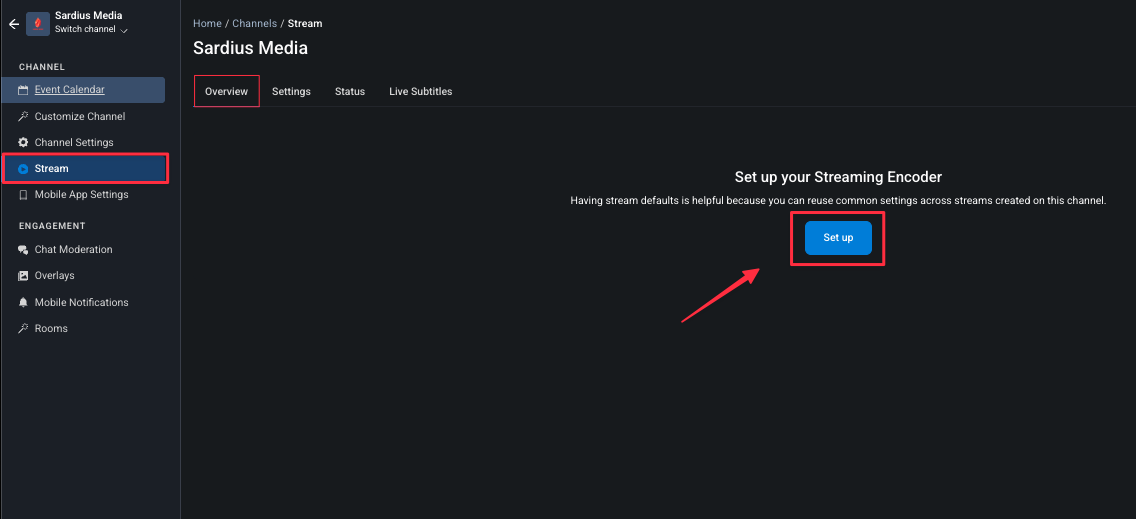
In the same Stream settings tab, click Set up.
Complete the Stream Setup
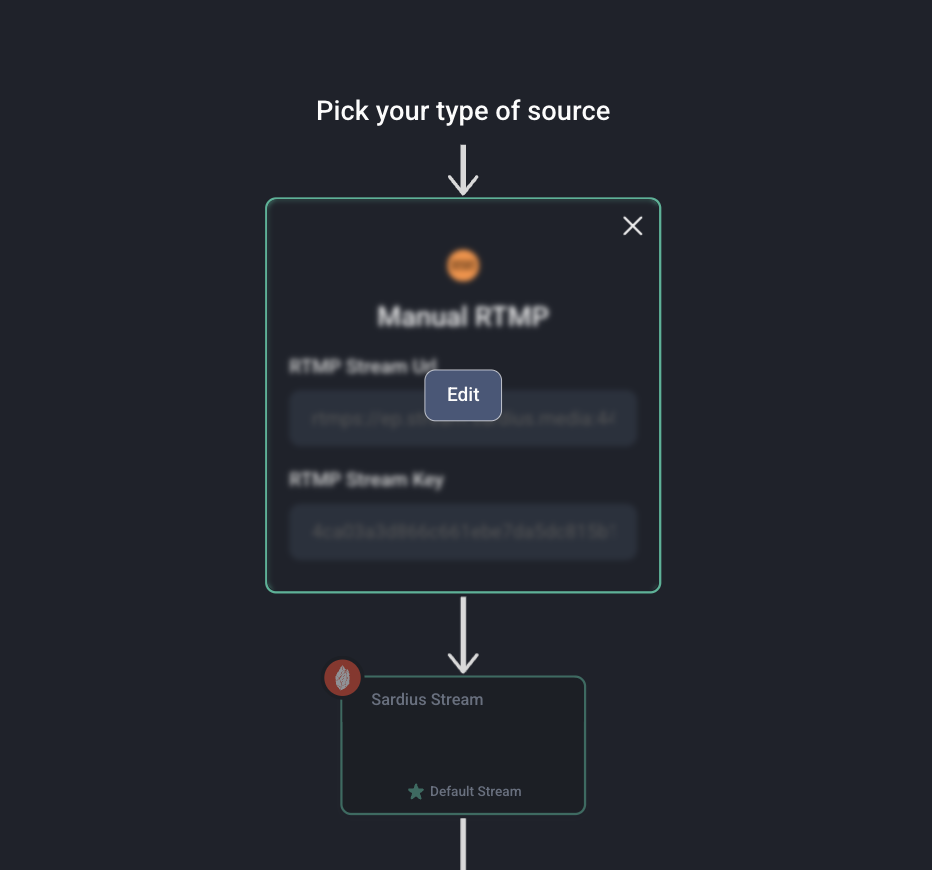
Complete these steps in order. Each step must be finished before you can move on to the next.
-
Choose Manual Source: Select Manually, with my own device or software.
-
Pick Your Protocol: Choose the protocol your encoder supports: RTMP, RTMPS or SRT.
-
Add Outputs (optional): Choose any other places you'd like your stream delivered. You can add one or more outputs, such as:
- YouTube
- Custom RTMP destinations
-
Click Save. Your stream credentials are created once your settings are saved.
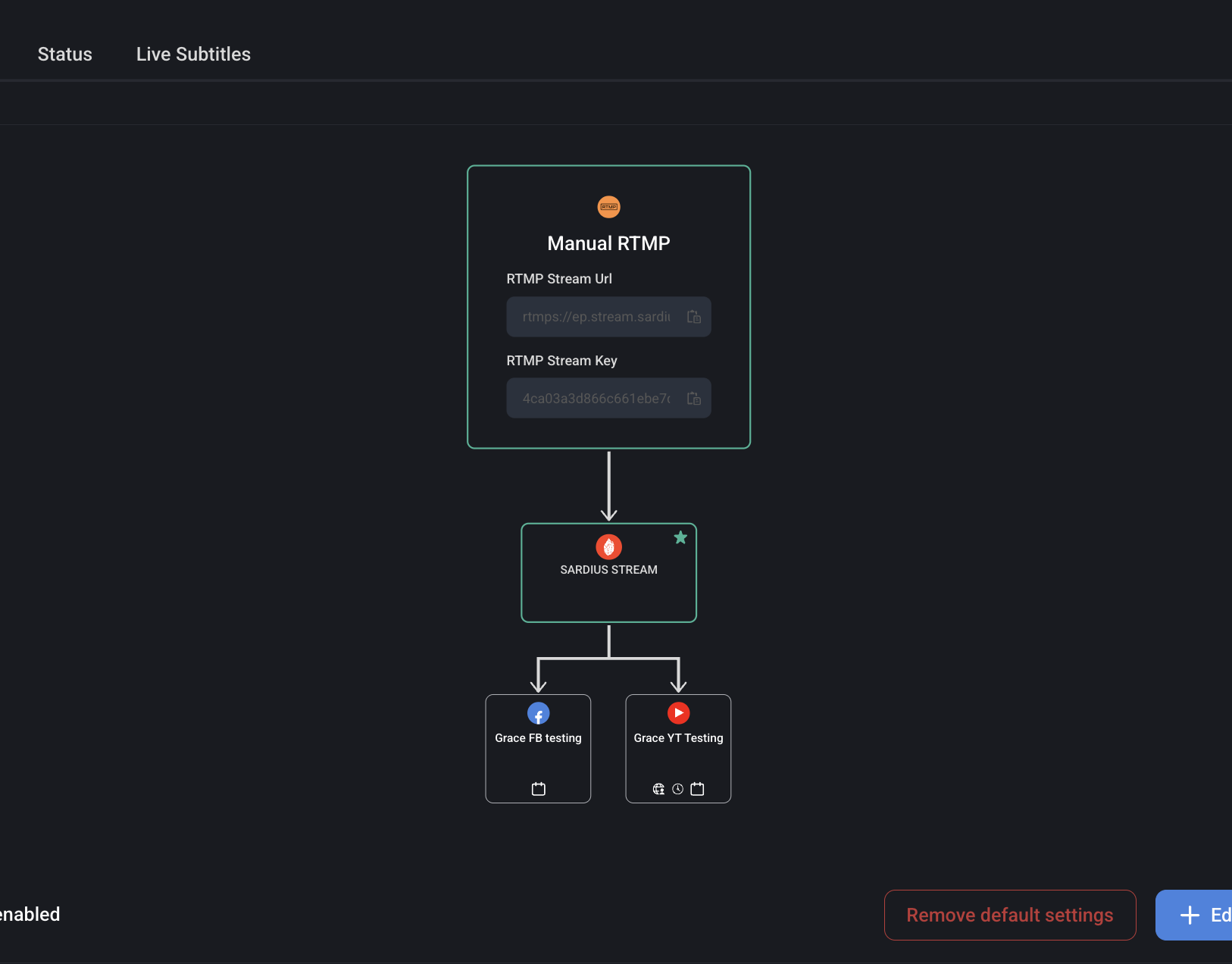
Here's an example of a completed manual stream configuration:
After Setup: Sending Your Stream to the Channel
Once your settings are saved, copy your stream credentials from your channel's Stream settings:
- RTMP / RTMPS: Copy the Stream URL and Stream Key.
- SRT: Copy the full SRT URL. It includes the address, port, passphrase and Stream ID.
If your encoder needs these entered separately, see Parse SRT URL below.
Then:
- Paste the credentials into your encoder's streaming settings.
- Start streaming from your encoder.
Your stream will begin delivering video to your Sardius channel.
Parse SRT URL
In many cases, the full SRT URL from Sardius can't be pasted into a single field in your encoder.
Different encoders handle SRT settings differently:
- Some require the destination address and port to be entered separately
- Some require the passphrase to be entered in a dedicated field
- Some encoders don't use the Stream ID at all
Because of this, you may need to break the SRT URL into its individual parts before entering it into your encoder.
URL breakdown:
srt://{URL}:{PORT}?passphrase={PASSPHRASE}&streamid={STREAM ID}
Example:
srt://ep.stream.sardius.media:778?passphrase=1fdb497c5f8ec88ec9898c22a026ce14k7f50d77
bad9201e8b85ebf9d1b2e86a7
&streamid=7f50d77bad9201e8b85ebf9d1b2e86a7
From this example:
- URL: ep.stream.sardius.media
- Port: 778
- Passphrase: 1fdb497c5f8ec88ec9898c22a026ce14k7f50d77bad9201
e8b85ebf9d1b2e86a7 - Stream ID: 7f50d77bad9201e8b85ebf9d1b2e86a7
Encoder Configuration
Using your stream credentials, set up your encoder's configuration.
Be sure to follow our Recommended Encoder Settings for your device to ensure the best compatibility.
When you're done, save your encoder configuration and start your encoder to begin streaming to Sardius.
Verify the Connection
Once your encoder is streaming:
- Return to the Sardius Control Panel.
- Create or open a Live Event on your calendar.
- Launch the Live Event Manager.
If your encoder is connected, you'll see live video in the player. This confirms your encoder is properly connected to your Sardius channel.
Common Questions & Troubleshooting
Why can't I continue to the next step?
Each step in the stream setup must be completed before you can move on.
Can I edit a Manual stream later?
Yes. You can change the source, protocol and outputs anytime before the stream goes live. Open your channel's Stream settings and click Edit default settings.
I don't see video in the Sardius player. What should I check first?
Start with these basics:
- Confirm your encoder is actively streaming, not just configured.
- If you're using RTMP or RTMPS, double-check that the Stream URL and Stream Key were entered correctly.
- If you're using SRT, double-check that the Stream URL, Port and Passphrase were entered correctly (and the Stream ID, if your encoder uses one).
- Make sure your encoder started streaming before the event start time.
- Refresh the Live Event Manager after your encoder is live.
If everything above checks out and you still don't see video, contact our support team.
What's the difference between Sardius Stream and Entrypoint?
-
Sardius Stream uses RTMP, RTMPS or SRT and works best when you're also streaming to social media. Sardius Stream supports HD only, not 4K.
-
Sardius HLS Entrypoint uses HLS instead of RTMP, RTMPS or SRT to deliver your stream into Sardius's Content Delivery Network (CDN). Because your stream is already in HLS, no transcoding is needed to deliver it to viewers on mobile devices. It's ideal if your source is already HLS, and it can output to a Sardius Channel as well as most web and mobile apps. Learn more in Set Up Sardius HLS Entrypoint.